
Installing WordPress Download Manager
Overview
WordPress Download Manager (WPDM) is a powerful file management and digital download solution for WordPress. This guide walks you through installing the plugin and getting it ready for use.
After your Purchase of WordPress Download Manager Pro
Go to the order details page: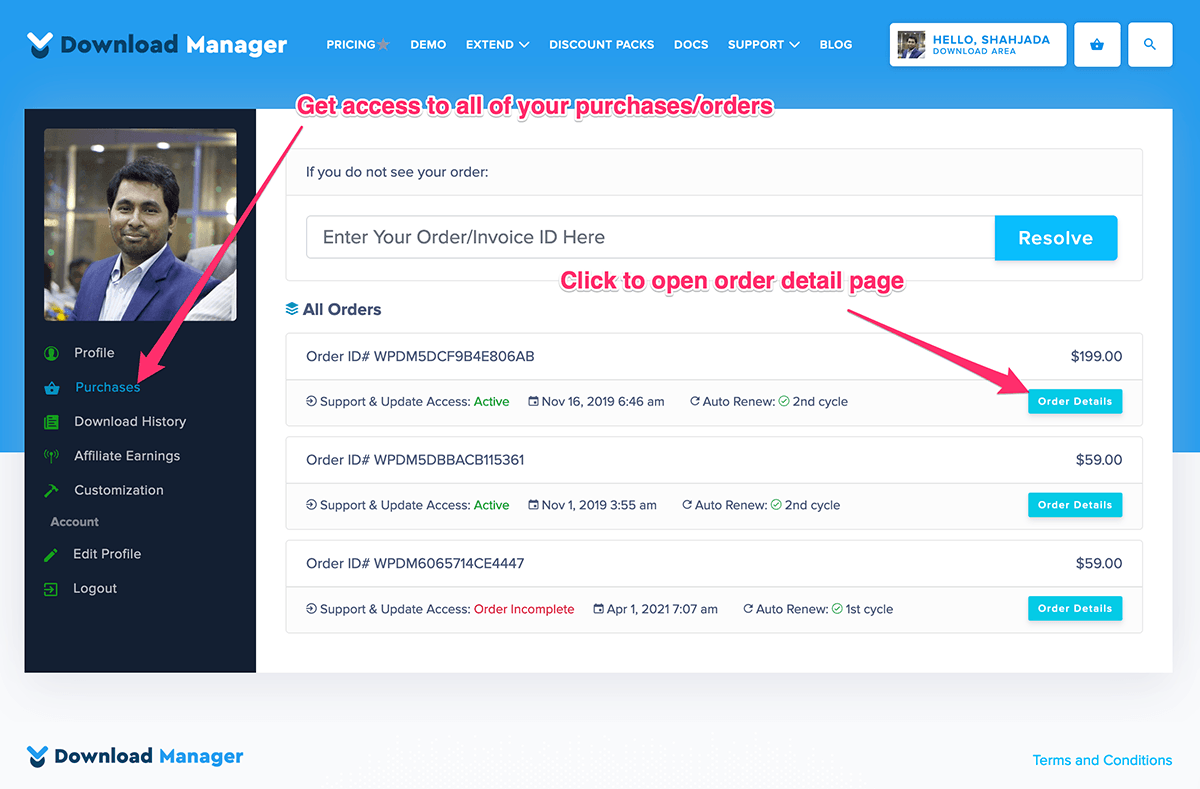
Download the plugin by click on the download button: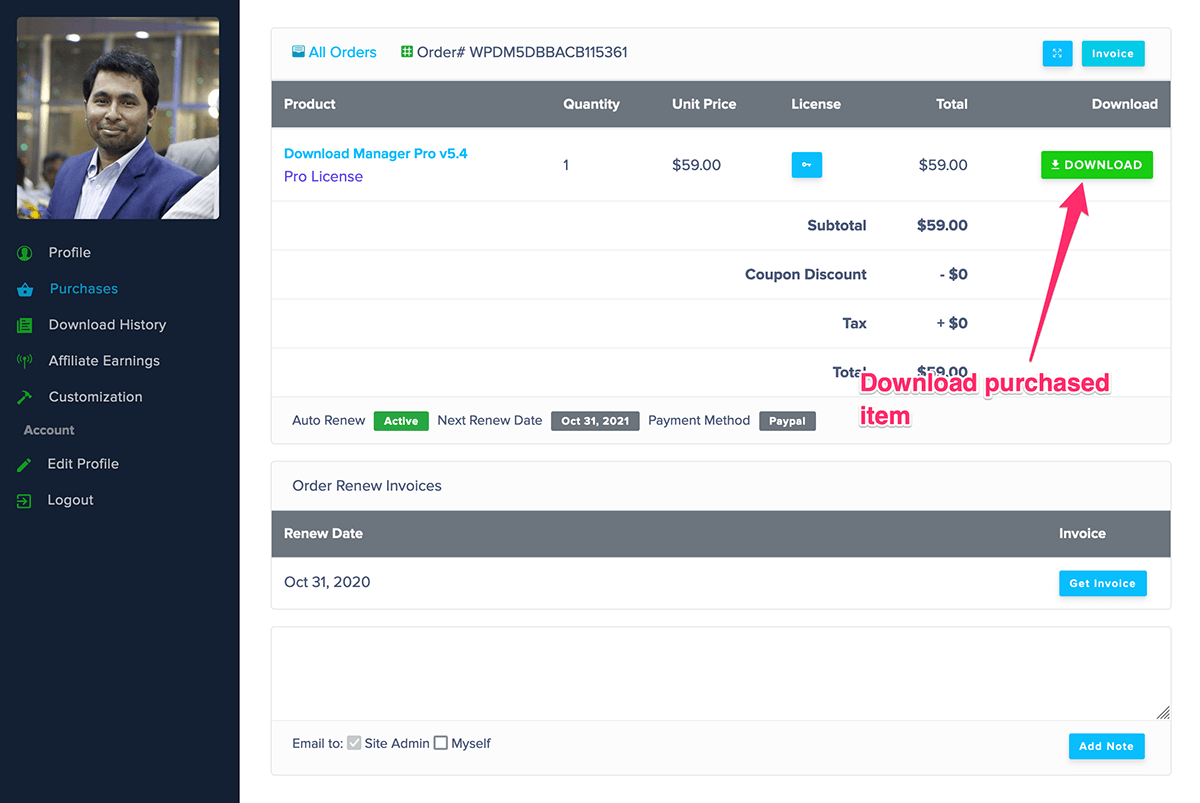
Your license key:
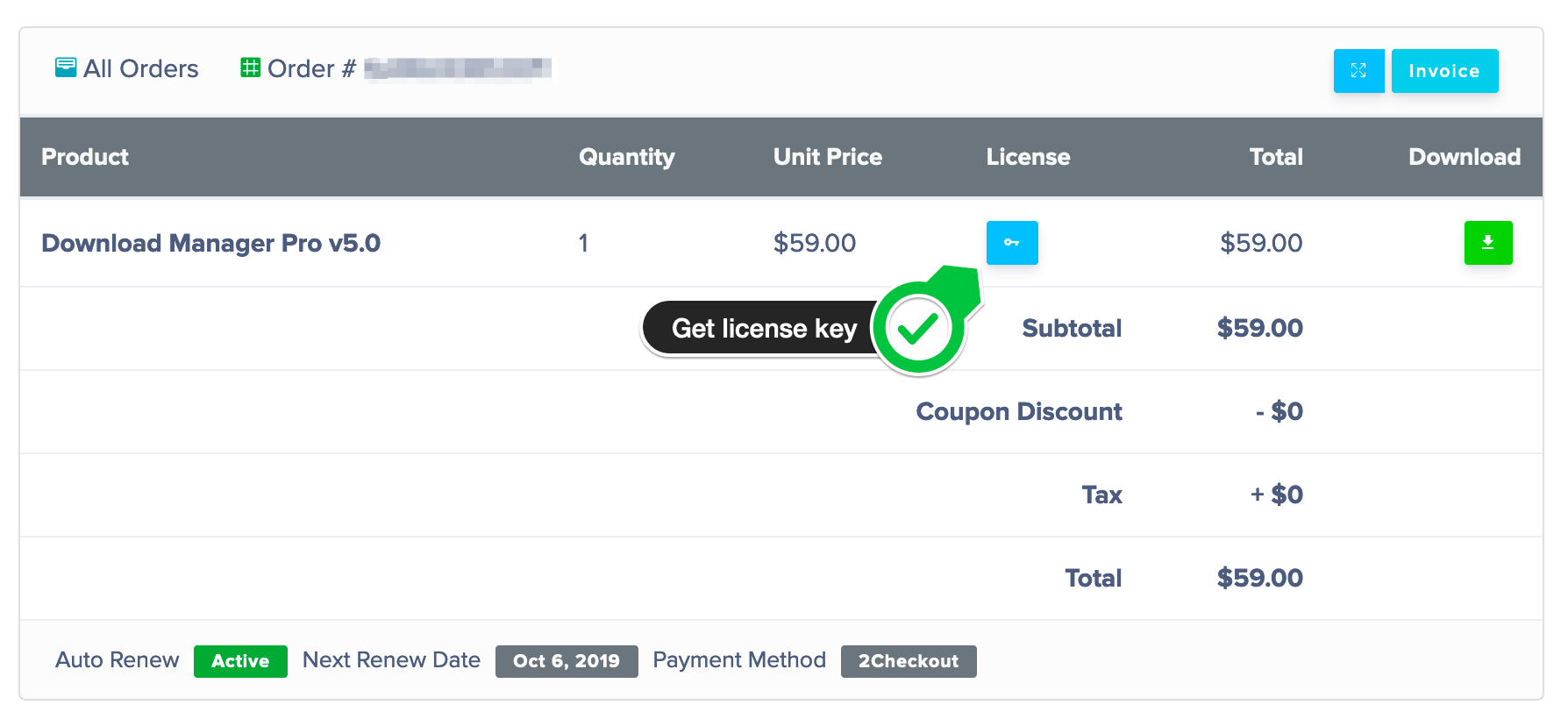
Prerequisites
Before installing WordPress Download Manager, ensure your system meets these requirements:
- WordPress: Version 5.0 or higher (6.0+ recommended)
- PHP: Version 7.4 or higher (8.0+ recommended)
- MySQL: Version 5.6 or higher, or MariaDB 10.0+
- Memory: Minimum 128MB PHP memory limit (256MB recommended)
- File Uploads:
upload_max_filesizeat least 32MB for handling downloads
Checking Your PHP Configuration
You can verify your PHP settings by installing the Health Check plugin or viewing phpinfo(). Key settings to verify:
| Setting | Minimum | Recommended |
|---|---|---|
memory_limit | 128M | 256M |
upload_max_filesize | 32M | 256M |
post_max_size | 32M | 256M |
max_execution_time | 60 | 300 |
Quick Start
- Download the plugin from WordPress.org or your account at wpdownloadmanager.com
- Navigate to Plugins > Add New > Upload Plugin
- Select the ZIP file and click Install Now
- Click Activate Plugin
- Go to Downloads > Add New to create your first package
Installation Methods
Method 1: Upload via Admin
Use this method if you downloaded the plugin as a ZIP file.
- Log in to your WordPress admin dashboard
- Navigate to Plugins > Add New
- Click the Upload Plugin button at the top
- Click Choose File and select the downloaded ZIP file
- Click Install Now
- Once the installation completes, click Activate Plugin
Method 2: WordPress Admin (Free)
This is the simplest method for most users.
- Log in to your WordPress admin dashboard
- Navigate to Plugins > Add New
- Search for “WordPress Download Manager”
- Click Install Now on the WPDM plugin
- Once installed, click Activate
Method 3: FTP/SFTP Upload
For advanced users or when the admin upload fails due to file size limits.
- Extract the downloaded ZIP file on your computer
- Connect to your server using an FTP/SFTP client
- Navigate to
/wp-content/plugins/ - Upload the extracted
download-managerfolder - Log in to WordPress admin
- Navigate to Plugins > Installed Plugins
- Find “WordPress Download Manager” and click Activate
Method 4: WP-CLI
For developers and server administrators.
# Install from WordPress.org
wp plugin install download-manager --activate

# Or install from a URL
wp plugin install https://example.com/download-manager.zip --activate
Post-Installation Setup
After activating the plugin, complete these essential setup steps:
1. Configure Basic Settings
Navigate to Downloads > Settings > General and configure:
- Files Directory: Set File Browser Root, where uploaded files are stored
- Download Speed: Limit bandwidth per download (optional)
- Chunk Size: For large file downloads
2. Set Up Permalinks
If package URLs show 404 errors:
- Go to Settings > Permalinks
- Click Save Changes (no changes needed, just save)
- This flushes the rewrite rules
3. Configure File Protection
Navigate to Downloads > Settings > Media Protection:
- Enable Protect Upload Directory to prevent direct file access
- This adds htaccess rules to block unauthorized downloads
4. Set Default Access Permissions
The default access permission is set to All Visitors. Default access permissions can be applied
to all packages, by using the WPDM Default Values add-on.
Go to Downloads > Settings > Default Values:
- Configure which user roles can access downloads
- Set default download limits if needed
Installing Premium Add-ons
Premium add-ons extend WPDM’s functionality. To install:
- Purchase and download the add-on from wpdownloadmanager.com
- Navigate to Plugins > Add New > Upload Plugin
- Upload the add-on ZIP file
- Activate the add-on
License Activation
Premium add-ons require license activation:
- Go to Downloads > Settings > License
- Enter your license key from your wpdownloadmanager.com account
- Click Activate License
Verifying Installation
Confirm WPDM is working correctly:
- Create a Test Package
– Go to Downloads > Add New
– Enter a title and attach a small test file
– Click Publish
- View the Package
– Click the View Package link
– Verify the download button appears
- Test the Download
– Click the download button
– Confirm the file downloads successfully
Troubleshooting Installation Issues
Plugin Won’t Activate
Symptoms: White screen or error message on activation
Solutions:
- Increase PHP memory limit in wp-config.php:
define('WP_MEMORY_LIMIT', '256M'); - Check for plugin conflicts by deactivating other plugins
- Review error logs in wp-content/debug.log
404 Errors on Packages
Symptoms: Package pages return “Page not found”
Solution: Flush permalinks by visiting Settings > Permalinks and clicking Save Changes.
File Upload Failures
Symptoms: Files won’t upload or upload fails mid-way
Solutions:
- Increase
upload_max_filesizeandpost_max_sizein php.ini - Check available disk space
- Verify folder permissions (755 for directories, 644 for files)
Database Errors
Symptoms: Missing tables or database errors
Solution: Deactivate and reactivate the plugin to trigger database table creation.
Uninstalling WPDM
To completely remove WordPress Download Manager:
- Backup Your Data: Export packages if you want to keep them
- Deactivate: Go to Plugins, deactivate WPDM
- Delete: Click Delete after deactivation
- Clean Up (optional): Remove
/wp-content/uploads/download-manager/directory
Warning: Deleting the plugin removes all packages and settings. This action cannot be undone.
Related Documentation
Applies to: WordPress Download Manager 6.x