
License Manager
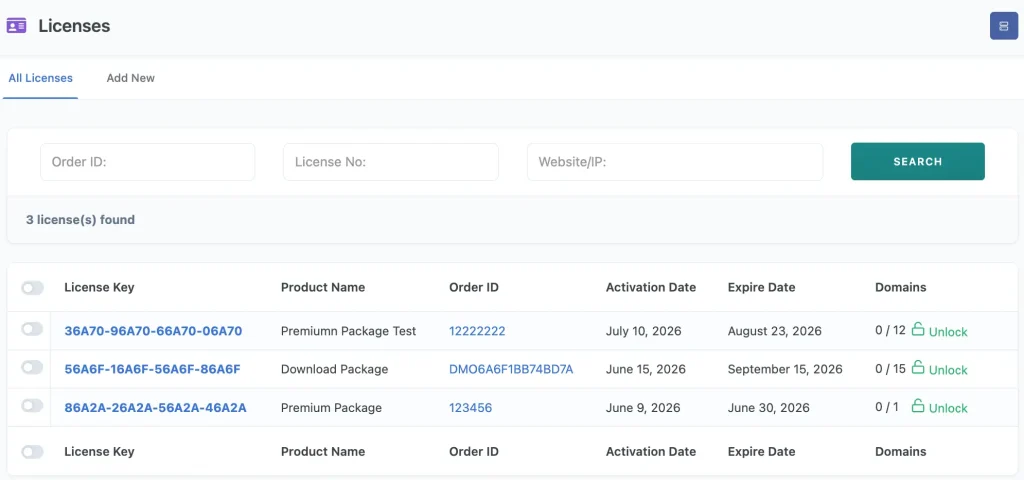
Here you can manage licensing for your packages. You can view all licenses along with their registered domains, edit any existing license, activate or deactivate a license, or clear the registered domains from a license.
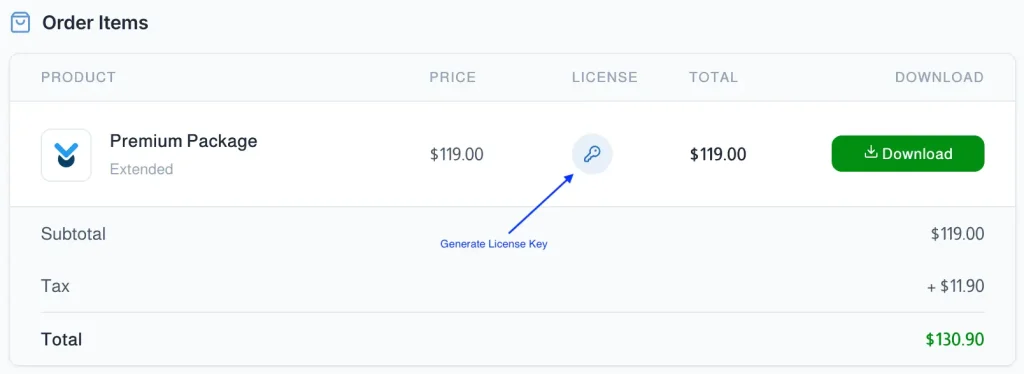
Customers can generate and copy the license key for their purchased items from the order details page:
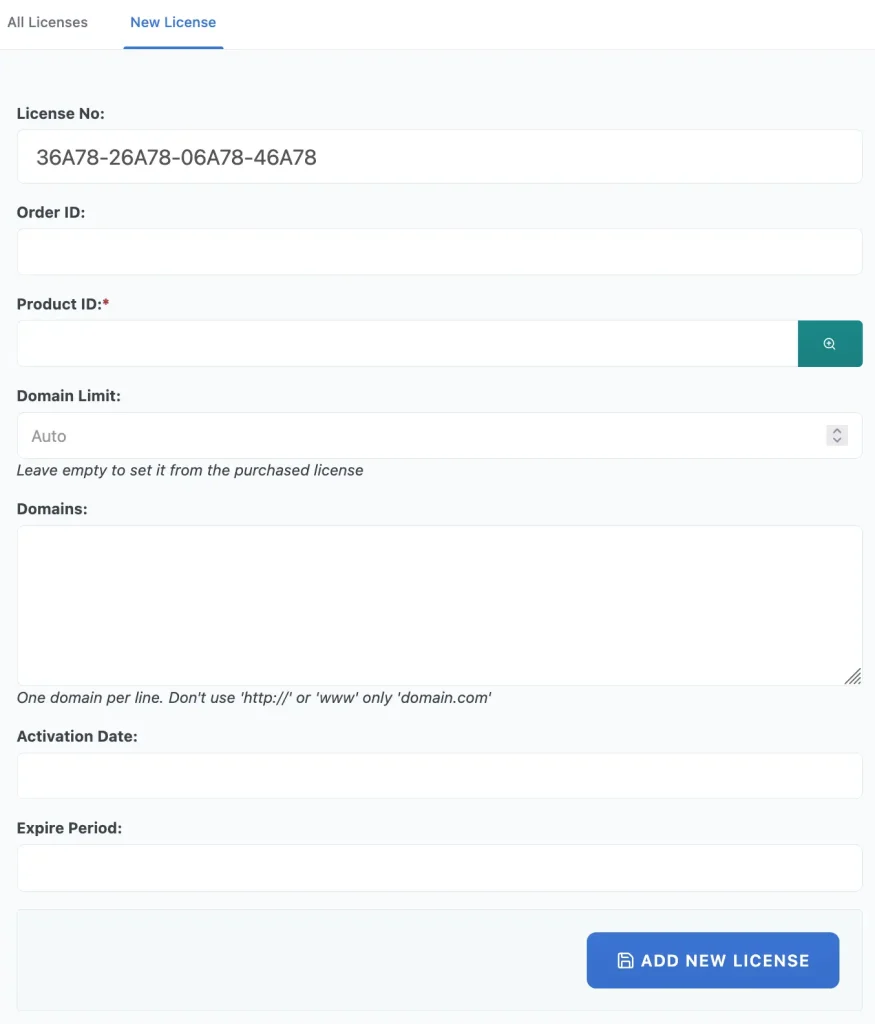
You also can add a license key for a product manually from here:
License Validation (Premium Packages 7.0.0+)
Premium Packages 7.0.0 validates license keys through the WordPress REST API. Send an HTTP POST request to the following endpoint on the site where Premium Packages is installed (you will also find this URL in the License Integration popup on the License Manager page):
POST https://yoursite.com/wp-json/wpdmpp/v1/license/validate
Required parameters:
| Parameter | Value |
|---|---|
license_key |
The license key to validate |
domain |
Domain name or IP address of the site using the license |
The endpoint is public — no authentication is needed — so your product can call it directly from the customer’s site. The first successful validation automatically registers the domain against the license (as long as a domain slot is available, based on the domain limit of the license type) and sets the activation date.
Valid response (HTTP 200):
{
  "success": true,
  "data": {
    "status": "VALID",
    "valid": true,
    "domain_registered": true,
    "order_id": "WPDM65A4B3C2D1E0F",
    "order_status": "Completed",
    "auto_renew": 1,
    "expire_date": 0,
    "activation_date": 1783325883,
    "download_url": "https://yoursite.com/?wpdmppd=...",
    "license": {
      "license_no": "XXXXX-XXXXX-XXXXX-XXXXX",
      "domains": ["example.com"],
      "domain_limit": 1,
      "remaining_slots": 0,
      "expire_date": 0,
      "is_expired": false
    }
  },
  "message": "License validated successfully."
}
A few notes:
expire_dateandactivation_dateare Unix timestamps; anexpire_dateof0means the license never expires.domain_registeredistrueonly on the request that registered the domain; later validations from the same domain returnfalse.download_url(a direct download link for the latest product package) is included only while the associated order status is Completed — handy for delivering automatic updates.
Error response (HTTP 400, or 410 when the license is expired):
{
  "success": false,
  "message": "License key not found.",
  "data": {
    "status": "INVALID",
    "error": "LICENSE_KEY_NOT_FOUND"
  }
}
status is either INVALID or EXPIRED. For invalid licenses, error tells you why:
| Error code | Meaning |
|---|---|
LICENSE_KEY_NOT_FOUND |
No license exists with the given key |
NOT_ACTIVE |
The license has been deactivated in License Manager |
USAGE_LIMIT_REACHED |
The domain limit is reached and the given domain is not one of the registered domains |
ORDER_ISSUE |
The order associated with the license is missing or its status does not allow validation |
ORDER_EXPIRED |
The associated order has expired (unless the License Key Validity setting allows expired orders to keep licenses valid) |
PHP Integration Example
Here is how you can send a license validation request from your product using cURL:
<?php
function validate_license( $license_key ) {
    $license_server = 'https://yoursite.com'; // The site where Premium Packages is installed
    $domain         = $_SERVER['HTTP_HOST'];  // Domain name or IP of this site

    $ch = curl_init();
    curl_setopt( $ch, CURLOPT_URL, $license_server . '/wp-json/wpdmpp/v1/license/validate' );
    curl_setopt( $ch, CURLOPT_POST, 1 );
    curl_setopt( $ch, CURLOPT_POSTFIELDS, http_build_query( array(
        'license_key' => $license_key,
        'domain'      => $domain,
    ) ) );
    curl_setopt( $ch, CURLOPT_RETURNTRANSFER, true );
    $server_output = curl_exec( $ch );
    curl_close( $ch );

    return json_decode( $server_output );
}

$response = validate_license( '1234-1234-1234-1234' );

if ( ! empty( $response->success ) && 'VALID' === $response->data->status ) {
    // License is valid
} elseif ( isset( $response->data->status ) && 'EXPIRED' === $response->data->status ) {
    // License has expired
} else {
    // License is invalid -- check $response->data->error for the reason
}
If your product is a WordPress plugin or theme, you can use the WordPress HTTP API instead:
$response = wp_remote_post( 'https://yoursite.com/wp-json/wpdmpp/v1/license/validate', array(
    'body' => array(
        'license_key' => $license_key,
        'domain'      => home_url(),
    ),
) );
$result = json_decode( wp_remote_retrieve_body( $response ) );
Managing Registered Domains via the API
Customers (the license owner, logged in on your site) can also review and free up domain slots through these authenticated endpoints:
| Endpoint | Method | Description |
|---|---|---|
/wp-json/wpdmpp/v1/license/{KEY} |
GET | Get license info (owner only) |
/wp-json/wpdmpp/v1/license/{KEY}/domains |
GET | List registered domains, domain limit and remaining slots (owner only) |
/wp-json/wpdmpp/v1/license/{KEY}/domains |
DELETE | Remove a domain from the license — pass the domain parameter (owner only) |
As an admin, you can activate/deactivate licenses and clear registered domains at any time from the License Manager page.
Upgrading from the Legacy API
Before version 7.0.0, license validation worked by posting wpdmLicense=validate together with licenseKey, domain and productId parameters to the site root URL. That endpoint was removed in 7.0.0 — if your product still uses it, update the integration to the REST endpoint above. What changed:
- The endpoint is now
/wp-json/wpdmpp/v1/license/validateinstead of the site root URL. - Parameter names are now
license_keyanddomain. A product code is no longer needed — each license key is already unique to an order + product combination. - The response is wrapped in a
success/dataenvelope, and license details (registered domains, domain limit, expiry) are returned underdata.license.