
WPDM iContact
2 min read
Updated Jan 30, 2026
Installing WPDM iContact Plugin
- Download the WPDM iContact plugin. Unzip plugin zip file and then upload the plugin folder and files via FTP Client like FileZilla to your wp-content/plugins folder OR upload the plugin zip file via the “Add New” plugin menu in WordPress.
- Activate the “WPDM – iContact” plugin you just installed.
Configure iContact To Work With WPDM iContact Plugin
If you didn’t register your app on iContact Follow the below Step 1 procedure. If you already registered an app, you can skip Step 1 procedure.
- Step 1 – Register Your App:
- Step 1: Visit: RegisterApp
- Step 2: Enter your iContact username and password to log in to iContact (if you are logging into the sandbox, use the sandbox username and password).
- Step 3: Provide a name for the application and a description for the application. Click Save.
- Step 4: The API-AppId is displayed. Note: For security purposes, iContact’s API uses your AppId to identify your application.
- Step 5: Click the link to “enable the AppID for your account” and select a password.
- Step 2 – Configure Download Manager Settings:
- Step 1: Login to your WordPress admin panel. Goto Downloads -> Settings -> iContact settings tab.
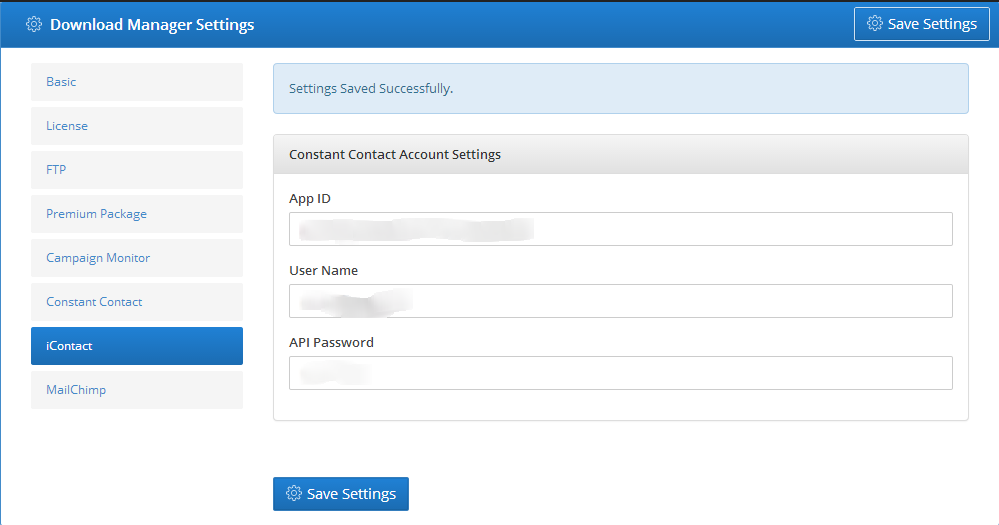
- Step 2: Provide App ID, User Name or Email address of iContact Account and API Password here. Click Save Settings button to Save your changes.
- Step 3: Click iContact tab again. Now you will see your previous settings along with a new setting named iContact List. Here you will see available iContact list. Select any list you want to add Subscriber.
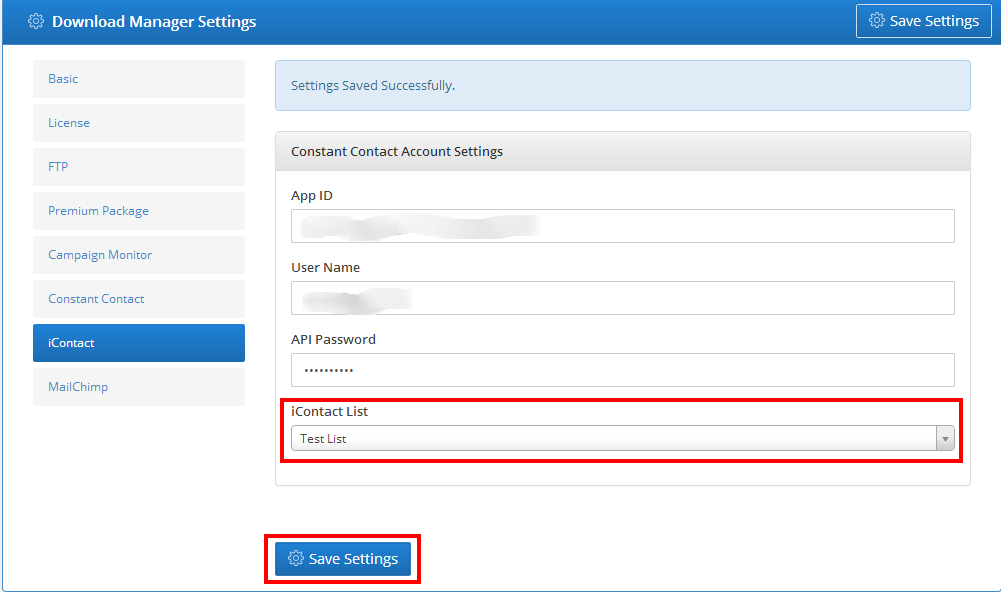
- Step 4: Finally Click Save Settings button.
- Step 1: Login to your WordPress admin panel. Goto Downloads -> Settings -> iContact settings tab.