
WordPress GitHub Integration
5 min read
Updated Jan 26, 2026
A powerful add-on for WordPress Download Manager that allows you to connect your GitHub account and attach repositories as downloadable files.
Features
- GitHub OAuth Integration – Securely connect your GitHub account
- Repository Browser – Browse and search all your GitHub repositories
- One-Click Attach – Attach any repository as a downloadable ZIP file
- Webhook Support – Automatically update files when new releases are published
- Private Repository Support – Access both public and private repositories
- Version Sync – Automatically sync version numbers from GitHub releases
Requirements
- WordPress 5.0 or higher
- WordPress Download Manager (WPDM) plugin installed and activated
- A GitHub account
- GitHub OAuth App credentials
Installation
- Upload the
wpdm-githubfolder to/wp-content/plugins/ - Activate the plugin through the WordPress ‘Plugins’ menu
- Navigate to Downloads → Settings → Github Connect to configure
Configuration
Step 1: Create a GitHub OAuth App
- Go to GitHub Developer Settings
- Click “New OAuth App”
- Fill in the application details:
- Application name: Your site name (e.g., “My WordPress Site”)
- Homepage URL: Your website URL (e.g.,
https://yoursite.com) - Authorization callback URL: Copy from WPDM settings (see Step 2)
- Click “Register application”
- Note your Client ID
- Click “Generate a new client secret” and copy the Client Secret
Step 2: Configure Plugin Settings
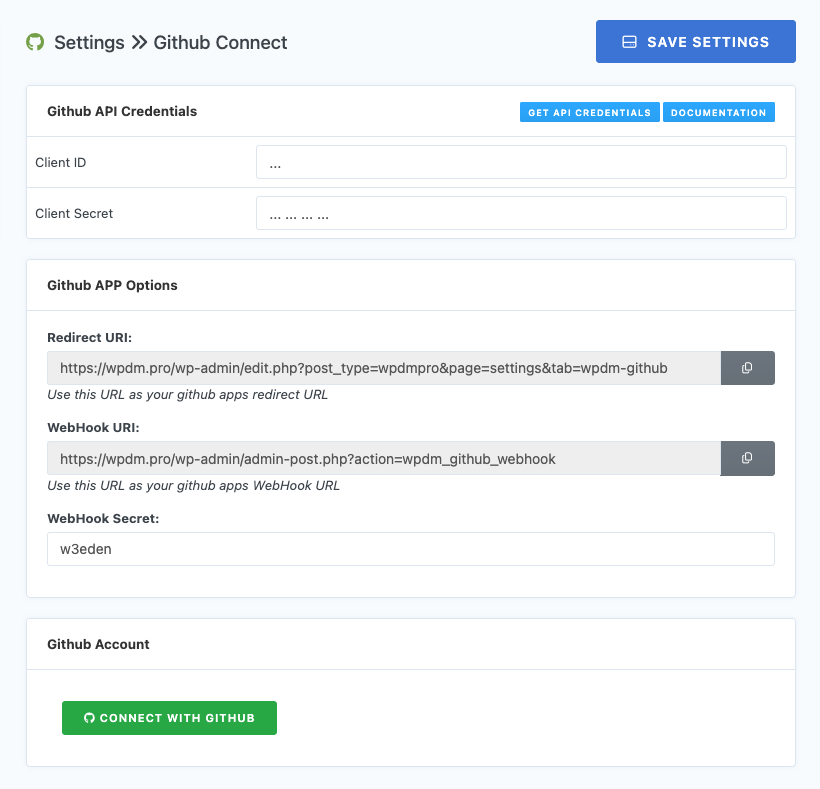
- In WordPress admin, go to Downloads → Settings → Github Connect
- Enter your Client ID and Client Secret from GitHub
- Copy the Redirect URI shown in the settings and paste it in your GitHub OAuth App’s “Authorization callback URL”
- Click Save Settings
Step 3: Connect Your GitHub Account
- After saving the API credentials, click the “Connect with GitHub” button
- Authorize the application on GitHub
- You’ll be redirected back to WordPress with your account connected
- You should see your GitHub username and avatar displayed
Usage
Attaching a GitHub Repository to a Download
- Create or edit a Download in Downloads → Add New or Downloads → All Downloads
- In the “Attach File” metabox, click the “Select From GitHub” button
- A modal will open showing all your repositories
- Use the search bar to filter repositories by name
- Click “Attach” next to the repository you want to add
- The repository will be downloaded as a ZIP file and attached to the download
Repository Information Displayed
For each repository, you’ll see:
- Repository name (owner/repo format)
- Default branch (main, master, etc.)
- Latest release tag (if available)
- Last update date (if available)
Webhook Configuration (Optional)
Webhooks allow automatic updates when you publish new releases on GitHub.
Setting Up Webhooks
- Go to Downloads → Settings → Github Connect
- Copy the WebHook URI
- Optionally, set a WebHook Secret for added security
- In your GitHub repository, go to Settings → Webhooks → Add webhook
- Configure the webhook:
- Payload URL: Paste the WebHook URI from WPDM
- Content type:
application/json - Secret: Enter the same secret you set in WPDM (if any)
- Events: Select “Releases” or “Let me select individual events” and check “Releases”
- Click “Add webhook”
How Webhooks Work
When you publish a new release on GitHub:
- GitHub sends a webhook notification to your WordPress site
- The plugin automatically downloads the new release ZIP
- The version number in WPDM is updated to match the release tag
- Users downloading the file will get the latest version
File Storage
Downloaded repository files are stored in:
/wp-content/uploads/download-manager-files/github/
Files are named using the repository name (e.g., my-repo.zip).
Token Configuration (Advanced)
The plugin looks for GitHub tokens in the following order:
- User Meta – Token stored when connecting via OAuth
- WordPress Option –
wpdm_github_tokenoption in the database - PHP Constant – Define
GITHUB_TOKENinwp-config.php:define('GITHUB_TOKEN', 'your_personal_access_token'); - Environment Variable – Set
GITHUB_TOKENin your server environment
This flexibility allows webhooks and cron jobs to access GitHub even without a logged-in user.
Troubleshooting
“GitHub is not connected” Error
- Ensure you’ve completed the OAuth flow by clicking “Connect with GitHub”
- Check that your Client ID and Client Secret are correct
- Verify the Redirect URI matches exactly in both WPDM settings and GitHub OAuth App
Repository Not Downloading
- Check that your GitHub token has access to the repository
- For private repos, ensure the token has the
reposcope - Check the webhook log at
/wp-content/plugins/wpdm-github/webhook-log.txtfor errors
Webhook Not Working
- Verify the Webhook URL is accessible from the internet
- Check that the webhook secret matches (if configured)
- Look for delivery errors in GitHub’s webhook settings page
- Check the webhook log file for debugging information
File Not Found on Download
- Ensure the ZIP file exists in the github folder
- Re-attach the repository to trigger a fresh download
- Check file permissions on the upload directory
Disconnecting GitHub
To disconnect your GitHub account:
- Go to Downloads → Settings → Github Connect
- Click the “Disconnect GitHub” button
- Confirm the disconnection
This removes the stored access token but does not revoke access on GitHub’s side. To fully revoke access:
- Go to GitHub Settings → Applications → Authorized OAuth Apps
- Find your WordPress site’s OAuth app
- Click “Revoke”