
Bulk Import
5 min read
Updated Jun 4, 2026
Use this feature to import multiple files at a time, from your web server, or you can import files from a CSV file. You can set Categories, set visitor access, change the title for each file, add a description for each file, and also can set passwords for each file.
Video Tutorial
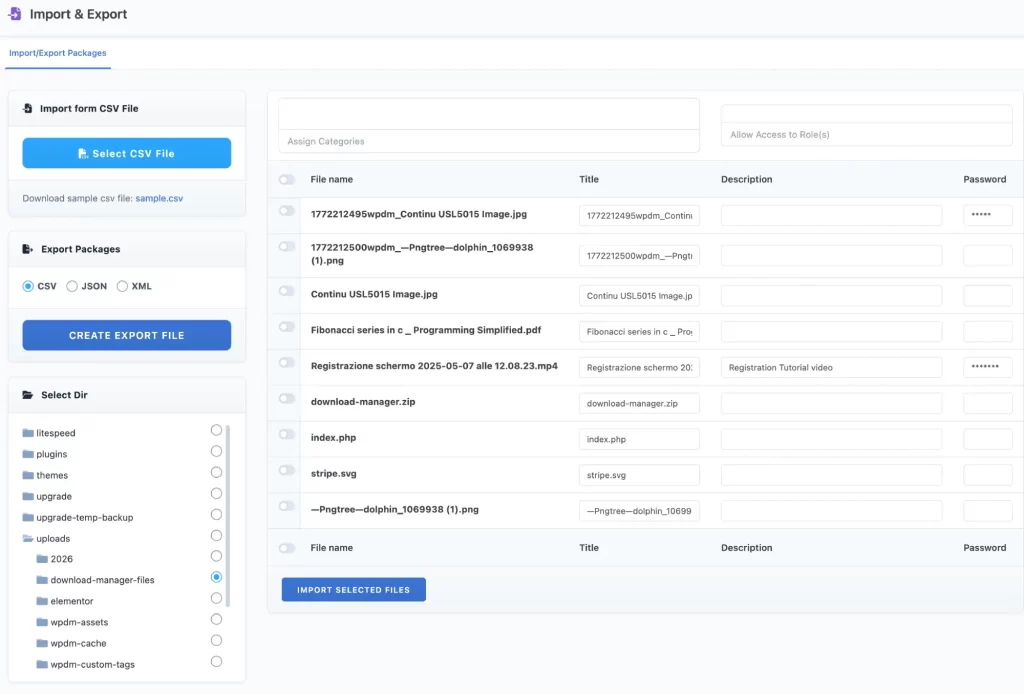
Details for each section is given below:
Import files from Server
- Step 1: Select a directory from Dir Tree, where you uploaded your files using FTP.
- Step 2: Click the Radio Button to load files associated with the selected directory. Files will be listed on the right side section.
- Step 3: check the checkbox at the first column of each row you want to import. You can change the title of the file, add a description and set passwords for each file.
- Step 4: You can assign categories to your files. Select categories from the category list. Note that, selected categories will be added to all files you selected to import.
- Step 5: Select User role(s) to control user access to the imported files.
- Step 6: Finally Click Import Selected Files button to import your files as packages.
Import from CSV File
- Prepare the CSV file
- Download attached sample CSV file
- Follow the same format of sample data to add new data
- Click Select CSV File and upload the file
Column headings for CSV file:
| Heading/Field Name | Description |
|---|---|
| ID | ID of an exiting package, for the cases, you are updating exciting packages |
| title | Package title |
| description | Package description |
| category | Package categories, multiple category names within double quote and each should be separated by comma, ex: "cat 1,cat 2,cat 3" |
| preview | Featured image, relative image path from uploads dir. Upload images in any dir inside wp-content/uploads/. Ex, if your image path is wp-content/uploads/wpdm-import-images/featured-image.png, in csv file add the relative path wpdm-import-images/featured-image.png |
| access | User role id(s) separated by comma, ex: guest for all visitors access, for selective role access "subscriber,author,editor,another-role" |
| uid | User id, if you want to assign author, otherwise skip it |
| files | Absolute file path from your server, if you keep the files in download-manager-files dir, use just file name, if you want to add multiple file, file names are separated by commas and keep them within double quote "/dir/path/file-name-1.ext,/dir2/path2/file-name-2.ext,file-name-3.ext" |
| file_titles | If you want to add custom file title for each file, file titles are separated by commas and keep them within double quote "PDF Ducment,Terms and Conditions,License File" |
| file_passwords | If you want to add a separate password for each file, skip if you don’t need a separate password for each file. Passwords are separated by commas and keep them within double quote "pass1,pass2,pass2" |
| file_prices | When you are selling this package, for example, a music album, you may want to sell individual songs, you need to add a separate price for each song, skip if you don’t need. Prices are separated by commas and keep them within double quote "5.00,6.50,4.50" |
| download_count | If you want to set a initial download count for this package, should be a positive intergent value. |
| view_count | If you want to set an initial view count for this package, it should be a positive integer value. |
| version | The version number for this package, ex:1.0.0 |
| link_label | Download button/link label, by default, it is Download, if you want to change, use any text you want. No html, use only text. |
| quota | If you want to set a stock limit, ex if you are distributing a ticket with a limited seat. It should be a positive integer value, 0 = Unlimited. |
| download_limit_per_user | If you want to set a download limit per user, for example, if you want each user will be able to download it 2 times, use 2. It should be a positive integer value, 0 = Unlimited. |
| package_size | Sum of total file size, it will be auto calculated for local files, if you are attaching files as URL you need to put the file size here. |
| individual_file_download | 0 or 1, Disable or Enable single file download when you attached multiple files with this package |
| template | Link template ID |
| page_template | Page template ID |
| password_lock | 0 or 1, Disable or Enable password lock |
| password | Password for this package if you enabled password lock |
| password_usage_limit | If you want to put a limit for each password usage, ex, if you use 2, each passwords can be used twice, then it will expire |
| email_lock | 0 or 1, Disable or Enable email lock |
| email_lock_idl | 0 or 1, Disable or Enable instant download for email lock |
| tweet_lock | 0 or 1, Disable or Enable tweet lock |
| facebook_lock | 0 or 1, Disable or Enable Facebook like lock |
| googleplus_lock | 0 or 1, Disable or Enable google connect lock |
| package_dir | Server dir path, if you want to attach a dir with this package |
| create_date | Create date, YYYY-MM-DD |
| update_date | Update date, YYYY-MM-DD |
| publish_date | Publish date, YYYY-MM-DD, if you want to make the download available in fiture date, skip it of you want to make the download available instantly |
| expire_date | Expire date, YYYY-MM-DD, if you disable download after a specific date, or you may skip |
| icon | Icon URL |
| base_price | If you are selling this package, use any floating number, ex: 19.00 |
| sales_price | If you are selling this package, use any floating number, ex: 19.00 |