A while back you guys did some custom work for us.
1. When a user logged out download manager, they end up back on the login page. Currently, logout takes a user to the WP login page.
2. When the user logged in, you bypassed the screen that said “You are already logged in. Go to your Dashboard.” That page is back.
3. I found a new bug. I am using User Role Editor to create custom Roles for users including alternate roles. I use the Roles to manage permissions in WPDM as to what downloads the user has access to. A user could have mulitple Roles and they would see any/all dowloads associated with each role. Originally this worked great, but now the user ONLY sees the downloads associated with their primary role. They do not see downloads associated with their alternate roles. They did a couple of months ago.
It doesn’t appear to search tags for downloads. For example, I added a tag to several items, yet they aren’t displaying at all when searching for that specific tag. Is this normal? I found this old forum topic, and hoped that this feature would be implemented, even if it required an exact match (better than nothing).
Are you planning to sell downloads or membership plans?
If yes, Install Download Manager Pro ( and WP Pro membership is selling membership too ). Then Multilevel Marketing plugin will add the MLM support to the affiliate sales of downloads.
Hi,
How long have you purchased the Download Manager Pro Licence?
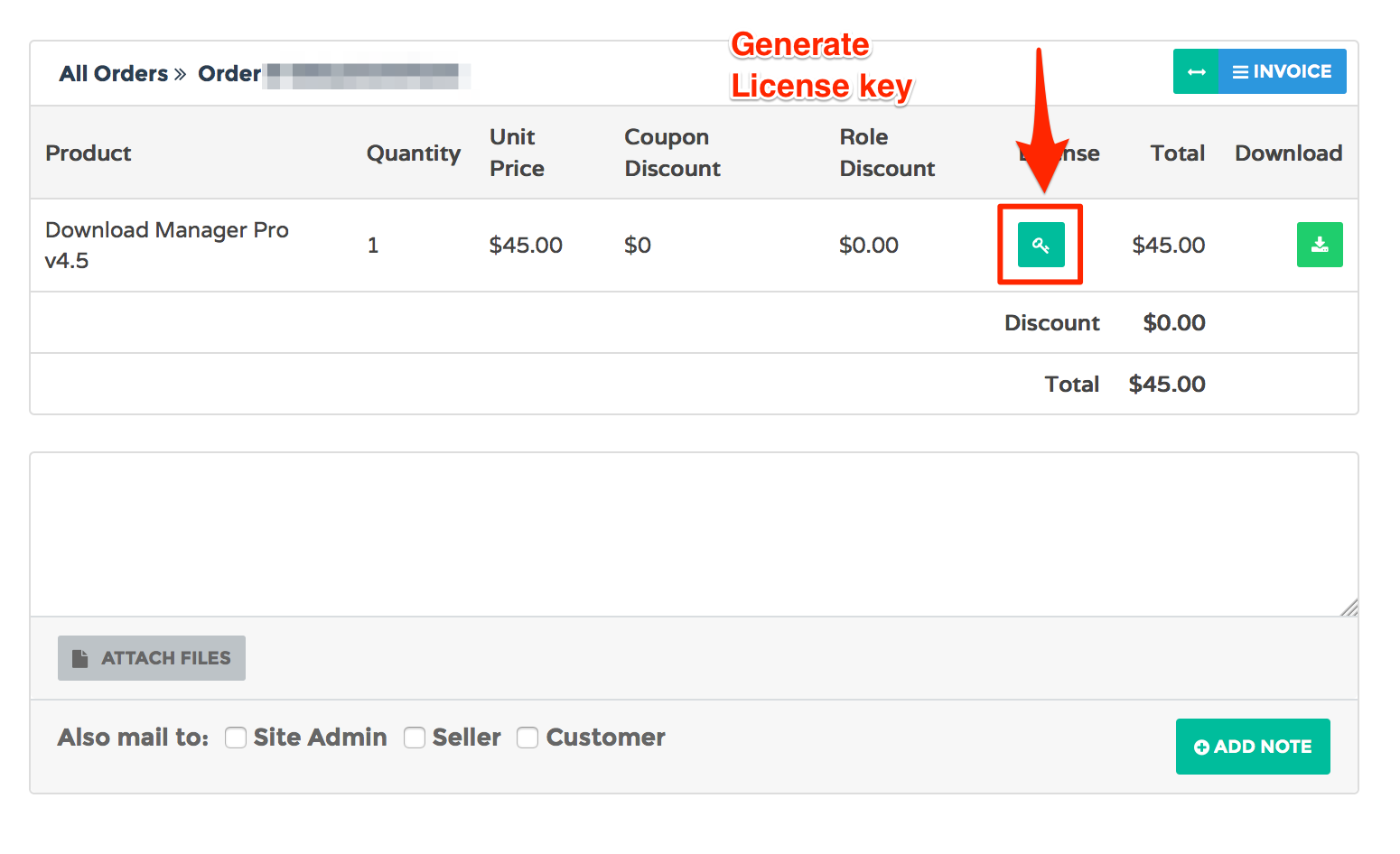
First, go to your Download Area https://www.wpdownloadmanager.com/user-dashboard/purchases/, then click ‘DOWNLOAD‘ button to see order details. You will find license key there. Check the following screenshot,
1 ) The answer is the custom link template. Clone the template you are using now from Downloads Templates page. Then remove unnecessary data/UI from the template. Then use this custom template in your shortcode.
2 ) This looks like an issue with your server’s email settings. Please try installing an SMTP plugin. Do you have any email feature on your site where email is sent successfully?
Here is the Shortcode doc to know more about available parameters.
Here is the doc that explains how to use custom template files https://www.wpdownloadmanager.com/doc/template-files/ You can use this template to translate table header. Or use plugin language file from /download-manager/languages/wpdmpro.pot to translate all words.
Hi,
I have a people registered on the site as Subscribers and they can access the downloads so all is working well.
However the Subscribers page in the backend is empty, from the name I was assuming this page would show me a list of accounts / subscribers.
hey, not sure could be that my wp is out of date but my host moved my account to a different server and screwed up my dbases and i could see the plugin in my list but not listed in the menu. THEN i reinstalled it but now when i select it or any menu item under downloads i only see a page that says “Invalid post type”. Any ideas?
All uploads broken after 4.7.1 update. File not Found TXT issued on all clicks.
This is not a multisite install as others have had issues. I’ve tried the following:
Delete and replace plugin
Deleted cache
Replaced a few downloads
Disabled all other plugins.
Okay, a bigger problem I have is also that I have multiple downloads on the same page but some are hidden by another plugin. These downloads can’t be accessed through the F12 console or similar, but if the person simply knows the permalink they can get to the download page. (I have the downloads set to be accessible only by Admin and Subscriber and all other users are subscribers). Would there be a way to hide the post pages on user by user basis or completely?
by post page I mean the page the permalink sends you to.
1 ) You didn’t have the register page, that’s why ‘Register’ button in login form was not responding. I have created a registration page and set it in settings. Now ‘Register’ button works.
2 ) When you assign a download to the subscribers, they must log in before download. That’s why a guest user is sent to http://it-ebs.co.uk/downloads/ page because you have set it as login page in settings. After logging in they can download any subscriber package.
3 ) Instead of going to the separate login page, You can use a login dialog if you want to stay in download page when logging in. I have set up a the settings to work in this way.
It appears WPDM downloads fail on network connections with greater than 250ms of latency.
We did some extensive testing and comparisons of a direct download from our server and a download done through WPDM. The download through WPDM consistently fails on network connections with greater than 250ms of latency.
Is this a known issue or are their settings to alleviate this?
Hi Jimmy,
No there is no conflict. Actually, there is a setting for site origin to enable it to custom post types.
For this, You need to go to settings -> Page Builder.
After that, you see post types at the top. Check the “Downloads” and save the settings from bottom button.
Then the page builder will appear with the post.
Hi Ivan,
After downloading the free-add on, you can install them as you install normal plugins.
Assume that, you have downloaded the zip file of the add-on.
So from the WordPress Dashboard, First go to -> Plugins -> Add new.
You will see upload plugin in the top. Click on “Upload plugin”, Then choose the file from where you downloaded it and click on “install now”.
After installing click on “Activate”.
Now the new options will appear in the WDM Downloads -> settings menu.
Do you want to lock downloads behind login page? Then just allow downloads only to ‘Subscribers’. The user must log in to access downloads. And after login, they can download any package.
1 ) Create a custom link template from Downloads Template page. You can clone an existing template from that page and edit on top of it. Remove all data that is not important for you ( i.e. version, date, download count etc ). Also remove [page_url] and [page_link] template tags those exists there. That will remove all link to the details page.
When inserting the category shortcode select this custom template as your link template. Install TinyMCE add-on to insert shortcode easily.
Hi, if I lock all downloads with ’email lock’ user should enter an email every time he download the package? Or only once and then he can download all locked packages.
Also, I have a lot of packages with lots of downloads per day. The stats ‘package vs day’ is not working for me. It tries to load the page and then I get 404. I assume it is too much o proceed. Is it possible to split into a few pages? Let’s say 20-50 packages per page?
You are using a custom shortcode for the table. You have to fix that custom code to get the correct icon URL. Set the icon URL in the package by clicking the icon and adjust the code for the custom shortcode to use the icon URL as it is.
Removing plugins_url('/') . from your child theme’s wpdm-all-downloads.php file should fix it. Did you create the cusotm shortcode yourself?
Author
Search Results
Viewing 25 results - 2,901 through 2,925 (of 4,487 total)