This reply has been marked as private.
Hi @guardian88,
Hope you are well.
JStable only works with the below shortcode.
[wpdm_all_packages login=1 thumb=1 items_per_page="20" categories="slug1,slug2,..." jstable=1 order_by="field_name" order="ASC/DESC" cols="title,file_count,download_count|categories|update_date|download_link" colheads="Title|Categories|Update Date|Download::155px"]
More details can be found here.
However, you can use the below shortcode instead.
[wpdm_search_result init=1 template="link-template-default" cols=1]
More details can be found here.
Thanks.
Hi there,
Can you please advise me on how can I display a total downloads of a specific category on a page?
A sum of all downloads of that category!
Many thanks
Hi,
For Invalid File Type updating ( 3.1.17 or 5.3.7 ), you may face the following 2 issues:
- Upload is not working
- Showing “Invalid File Type” error when trying to download
Here is the reason and solution:
From WPDM Free 3.1.20 and WPDM Pro 5.3.7, we have changed the file type validation process during file upload and download. Now, you have to white file types to allow them to upload or download. You will find the option at Admin Menu ► Downloads ► Settings ► Basic Settings Tab ► Upload Settings section.
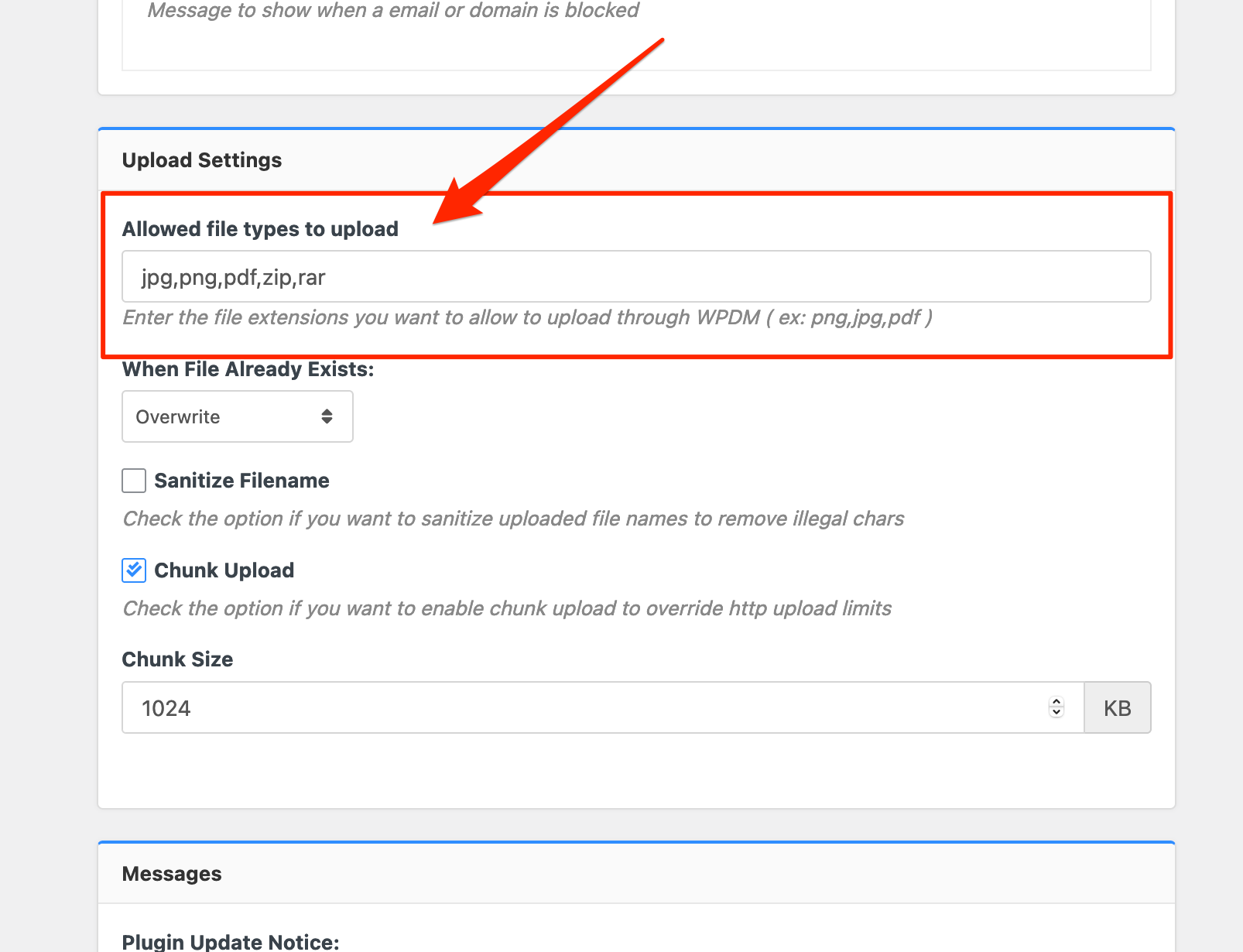
Please add file types ( texts, multiple texts separated by a comma ) as shown on the marked image. And then save settings. The shall resolve the issue.
or, Just Keep it Empty for WordPress default use as I image attached

thus it may resolve the issue
thanks
Please simply click the Save Settings again for the license key option from Downloads > Settings > License, which will regenerate the access token. Finally, go to the plugins page and the update will work fine this time
and for add-on for now,
1 ) Download the latest version from here https://www.wpdownloadmanager.com/user-dashboard/?udb_page=purchases
2 ) Install the latest version
thanks, I hope you have understood
On the plugin description, it says “Video file download protection, allow visitors to play but block download.” On our site, we have removed the download button and information from the video player template so that it only shows the video. However, when someone right clicks on the video (an uploaded mp4 file), they can still save the video. How can I block visitors from downloading videos, while still allowing visitors to play them?
Previously, “controlsList=’nodownload'” was added to the line of html in class.package.php where the video player is initialized. However, this does not prevent download of the video when someone right clicks on it.
I upgraded to the Download Manager Pro and now I get an error “Invalid dir path” when I try to run my downloads. Do I need to set something in settings? It worked fine with the basic version of the plugin. Can some advise me what to do?
This reply has been marked as private.
Hi,
Sorry for the delays.
Please check the doc here https://www.wpdownloadmanager.com/doc/short-codes/wpdm_all_packages-list-all-downloads-in-tabular-format-in-a-page/, there is a way to add the author name and other author-related info with the table.
When adding a shortcode order="ASC/DESC" indicated the sort order, you either add order='ASC' or order='DESC', field_name should be replaced by the field name you want to sort, for example, if you want to sort by title, order_by="field_name" should be order_by="title".
To add a category filter, use parameter categories='CATEGORY_SLUG', here replace CATEGORY_SLUG with an exiting category plugin from your category name.
However, everything is explained on the doc URL mentioned above. However, please let me know if anything is not clear in the doc.
Thanks.
Hi,
For Invalid File Type updating ( 3.1.17 or 5.3.7 ), you may face the following 2 issues:
- Upload is not working
- Showing “Invalid File Type” error when trying to download
Here is the reason and solution:
From WPDM Free 3.1.20 and WPDM Pro 5.3.7, we have changed the file type validation process during file upload and download. Now, you have to white file types to allow them to upload or download. You will find the option at Admin Menu ► Downloads ► Settings ► Basic Settings Tab ► Upload Settings section.
Please add file types ( texts, multiple texts separated by a comma ) as shown on the marked image. And then save settings. The shall resolve the issue.
or, Just Keep it Empty for WordPress default use as I image attached
thus it may resolve the issue
thanks
Hello, if I open in the admin panel on left side Download I get the message:
“Fatal error: Allowed memory size of 805306368 bytes exhausted (tried to allocate 60912584 bytes) in ….wp-db.php on line 2056”
Other selections like settings under Downloads are working.
I have also tried to disable some plugins but it don’t help.
What can I do?
Thank you.
Regards,
Martin
Hi!
I’m trying to install the registration payment for new users (to different pricing plans).
I have some questions:
– Can I have a separate register page for the different membership plans? Because there is only one option if you go to Downloads > Settings > Front-end access > Register page
– How do I install the payment? Installing the register form works well, but I don’t see any payment options or billing info/forms. Do I have to use any add-on or … ? I did read the Docs on this site and tried all the options, but I can’t seem to find it.
For example: this is the sales funnel I want to create
Our ‘register for free’ page > register form (no payment required) > login page
Our ‘pricing page’ > ‘Basic plan’ page (with more details about the plan) > register form > billing details > payment > login page
How do I create this? Can you help me? 🙂
EDIT: I’m going to use the Mollie add-on.
Please simply click the Save Settings again for the license key option from Downloads > Settings > License, which will regenerate the access token. Finally, go to the plugins page and the update will work fine this time
and for add-on for now,
1 ) Download the latest version from here https://www.wpdownloadmanager.com/user-dashboard/?udb_page=purchases
2 ) Install the latest version
thanks, I hope you have understood
Hello, I am opening this request regarding your PRO extension. I would like to know how I can make the download archive page limited only to registered users based on the selected access levels (http://marcomirabito.it/businessonweb/all-downloads/) Currently it is also downloadable to everyone.
Also I would like to understand how to make the downloads assigned to that user appear in the user’s dashboard. Only the latest downloads appear.
Sorry for my english and best regards
Marco
—
Two Related Questions
QUESTION 1:
– My downloads are grouped under 3 main categories, all the categories appear together.
– Can I display each main category separately, in its own URL?
– Here is a screenshot of what I need:
image1
QUESTION 2:
– Can I have a URL that shows the content of a specific folder?
– Here is a screenshot of what I need:
image2
-
This topic was modified 5 years, 5 months ago by
 ERA Brand ID.
Hi,
For Invalid File Type updating ( 3.1.17 or 5.3.7 ), you may face the following 2 issues:
- Upload is not working
- Showing “Invalid File Type” error when trying to download
Here is the reason and solution:
From WPDM Free 3.1.20 and WPDM Pro 5.3.7, we have changed the file type validation process during file upload and download. Now, you have to white file types to allow them to upload or download. You will find the option at Admin Menu ► Downloads ► Settings ► Basic Settings Tab ► Upload Settings section.
Please add file types ( texts, multiple texts separated by a comma ) as shown on the marked image. And then save settings. The shall resolve the issue.
or, Just Keep it Empty for WordPress default use as I image attached
thus it may resolve the issue
thanks
This reply has been marked as private.
Hi,
For Invalid File Type updating ( 3.1.17 or 5.3.7 ), you may face the following 2 issues:
- Upload is not working
- Showing “Invalid File Type” error when trying to download
Here is the reason and solution:
From WPDM Free 3.1.20 and WPDM Pro 5.3.7, we have changed the file type validation process during file upload and download. Now, you have to white file types to allow them to upload or download. You will find the option at Admin Menu ► Downloads ► Settings ► Basic Settings Tab ► Upload Settings section.
Please add file types ( texts, multiple texts separated by a comma ) as shown on the marked image. And then save settings. The shall resolve the issue.
or, Just Keep it Empty for WordPress default use as I image attached
thus it may resolve the issue
thanks
Every time I’m trying to upload a pdf (and they are under the max file size of 256 MB), I get this error and nothing is uploading:
Upload Error:
File type is blocked for security reason!
Most all our files in WP Downloads are pdfs, so I know it has worked in past, but is not working right now.
Thanks
-
This topic was modified 5 years, 5 months ago by
 Kristi Slette. Reason: clarification
Hello,
Have you checked this add-on, https://www.wpdownloadmanager.com/download/advanced-access-control/, this add-on will allow you user-specific access to your files and document downloads, please check and let me know
thanks
Dear Wpdm team can we limit the number of downloads for the same user for a specific period?
i mean if I want that user can download 10 files in a day, after that he did not allow to download the file until the next day? so is this possible with wpdm pro or not sir?
Can you please elaborate more on your #1 problem, are you trying to have two different types of files in one package?
and for #2, you may use categories parameter for this shortcode, https://www.wpdownloadmanager.com/doc/short-codes/wpdm_all_packages-list-all-downloads-in-tabular-format-in-a-page/
thanks



