

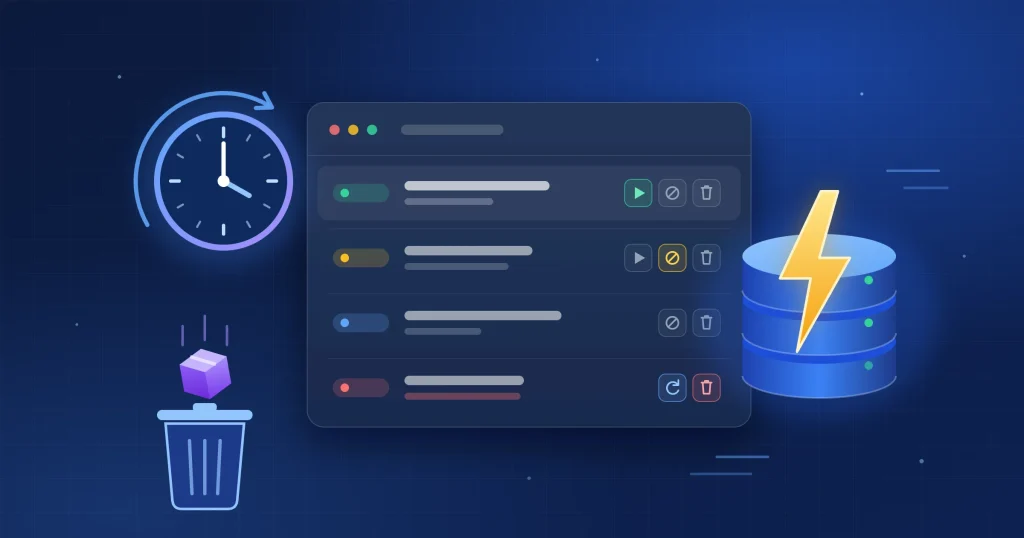
Download Manager 7.6.3 is a maintenance release that makes busy download sites faster and fixes scheduled clean-up. Pages that list many packages no longer slow down as your download history grows, the Automatically delete expired packages option works again, and every scheduled task now runs from one cron URL. There are no new settings to learn: update the plugin and its database update takes care of the rest.
Here is what changed and what to check after you update.
What’s New in Download Manager 7.6.3
- Faster package listings on sites with a large download history, thanks to a new database index
- Expired packages are deleted again when Automatically delete expired packages is on
- One cron URL in Downloads → Settings → Cron Jobs that runs every scheduled task
- A clearer Recent Jobs list with icon buttons, job names, repeat intervals and errors
- Database clean-up that removes duplicate indexes left by earlier updates
Faster Pages for Sites with a Large Download History
Download Manager lets you limit how many times each user can download a package. To enforce that limit, it keeps a download count for every visitor and package. Until now, each package on a page looked up the current visitor’s count, and that table had no index for the lookup, so the database read the whole table every time. On a new site that is instant. On a site with years of downloads, it adds up.
A customer running four Download Manager Pro sites traced their slow pages to this and shared the fix in our support forum. On their largest site, a page listing 38 documents took 17.4 seconds to generate. With the index it took under half a second. We reproduced it on a copy of the table with 1.8 million rows: the 38 lookups took 9.3 seconds without the index and 0.03 seconds with it. Thank you for the detailed report.
Download Manager 7.6.3 fixes this in two ways:
- The table is indexed. The database update adds an index on the package and user columns. If you already added your own index on those columns, the update leaves it alone instead of adding a second one.
- Most packages skip the lookup. The count is only read for packages that have a per-user download limit. Packages without one never touch the table.
The index is added by the database update. If you update from the WordPress dashboard, it runs automatically. If you upload the plugin by hand, click Update Database in the notice that appears. Even on large tables it only takes a moment: 1.8 million rows took 1.5 seconds in our tests.
“Automatically Delete Expired Packages” Works Again
You can give any package an expiry date, after which its download button shows Expired and downloads stop. The Automatically delete expired packages option under Downloads → Settings → General is meant to clear those packages out for you.
When we rebuilt the cron system in version 7.0.2, the cron URL shown under that option stopped being handled, and WordPress cron never ran the task either. Expired packages stayed published, and the option did nothing.
In 7.6.3, WordPress cron checks for expired packages about every five minutes on sites with regular traffic, and moves published packages past their expiry date to the trash. They are not deleted permanently, so you can restore any of them from Downloads → Trash.
If you turned this option on a while ago, packages that expired in the meantime will move to the trash shortly after you update. Check the trash if you want to keep any of them.
One Cron URL for Every Scheduled Task
Download Manager used to show three cron URLs in three places: one for expired packages in General settings, one for cache clean-up in Privacy settings, and one for the job queue in Cron Jobs settings. Each did one thing.
Now there is one. The External Cron URL in Downloads → Settings → Cron Jobs runs everything WordPress cron runs for Download Manager:
- the job queue, such as scheduled emails, reports and renewal reminders
- moving expired packages to the trash, if that option is on
- clearing expired sessions and, if Auto clean cache is on in Privacy settings, the cache, at most once every six hours
The cron key moved to the same screen, so you can change the key and copy the new URL in one place. The General and Privacy settings now link there instead of showing their own URLs.
Do I need a server cron job?
Only if WordPress cron is disabled on your site (DISABLE_WP_CRON) or your site gets little traffic, because WordPress cron only runs when someone visits. In that case, call the URL every 5 to 15 minutes from your hosting control panel or server crontab:
*/5 * * * * curl -s "https://your-site.com/?wpdm_cron=1&cronkey=YOUR_CRON_KEY" > /dev/nullAlready have a cron job set up with one of the old URLs? It keeps working, so there is nothing to change. A request with a wrong key now gets an error instead of loading your home page.
A Clearer Recent Jobs List
The Recent Jobs table on the Cron Jobs screen is easier to scan and act on:
- Icon buttons to run, cancel, retry or delete a job, with tooltips
- Readable job names, such as Order Renewal Notification, instead of class names
- Repeat intervals for recurring jobs and the last error for failed ones
- Overdue notes for pending jobs that are past their run time, a hint that cron is not running
- Your site’s timezone for job times. They were shown in UTC before.
Other Fixes
- Duplicate database indexes removed. Every database update added another copy of the same index to the asset links table, up to MySQL’s limit of 64. The update now removes the copies, which also makes writes to that table faster.
- Cache clean-up cron URL fixed. The URL from the Privacy settings stopped working in 7.0.2 as well. It works again for existing cron jobs.
After You Update
- Update Download Manager Pro to 7.6.3. From the dashboard, the database update runs on its own and adds the new index. After a manual upload, click Update Database in the notice.
- Using Automatically delete expired packages? Look in Downloads → Trash for packages that expired before the update.
- Using a server cron job? Nothing to change. To run every task from one job, switch it to the URL in Downloads → Settings → Cron Jobs.
Frequently Asked Questions
Will the update delete my expired packages?
Only if Automatically delete expired packages is turned on, and only packages that are published and past their expiry date. They go to the trash, not straight to permanent deletion.
I already added the index myself. Will the update add a second one?
No. The update checks for an existing index on the package and user columns, in either order, and only adds its own if there is none.
Does adding the index lock my site?
No. On InnoDB tables, the default on current MySQL and MariaDB, the table stays in use while the index is built, and it finishes in a few seconds even with millions of rows.
Do I have to change my existing cron jobs?
No. The old cron URLs from the General and Privacy settings still work. The Cron Jobs URL is simply the one to use for new jobs.
Get Download Manager 7.6.3
Download Manager Pro 7.6.3 is available now from your dashboard and your account. Update to get faster package listings on busy sites and scheduled clean-up that actually runs.
