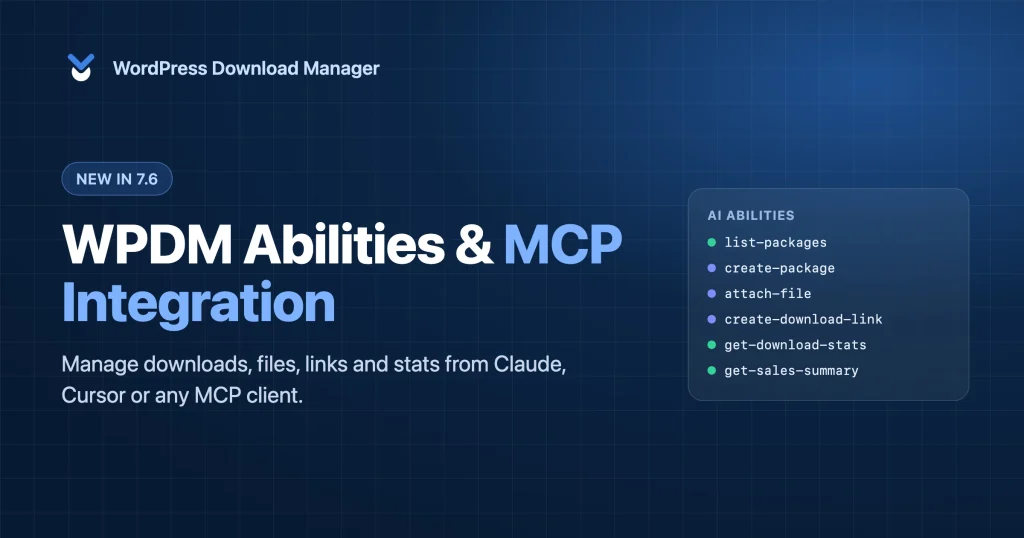
AI assistants have moved past answering questions. Tools like Claude and Cursor can now take real actions in the apps you connect them to. With the new WPDM Abilities & MCP integration, your WordPress downloads are one of those apps: an AI agent can find packages, create new ones, attach files, send expiring download links and report on your download stats, all from a simple chat.
This guide explains what the integration does, how it keeps your site safe, and how to connect your first AI agent in a few minutes.
What’s New in Download Manager 7.6
Download Manager 7.6 registers its everyday operations with the WordPress Abilities API, so any AI client that speaks the Model Context Protocol (MCP) can use them. In short:
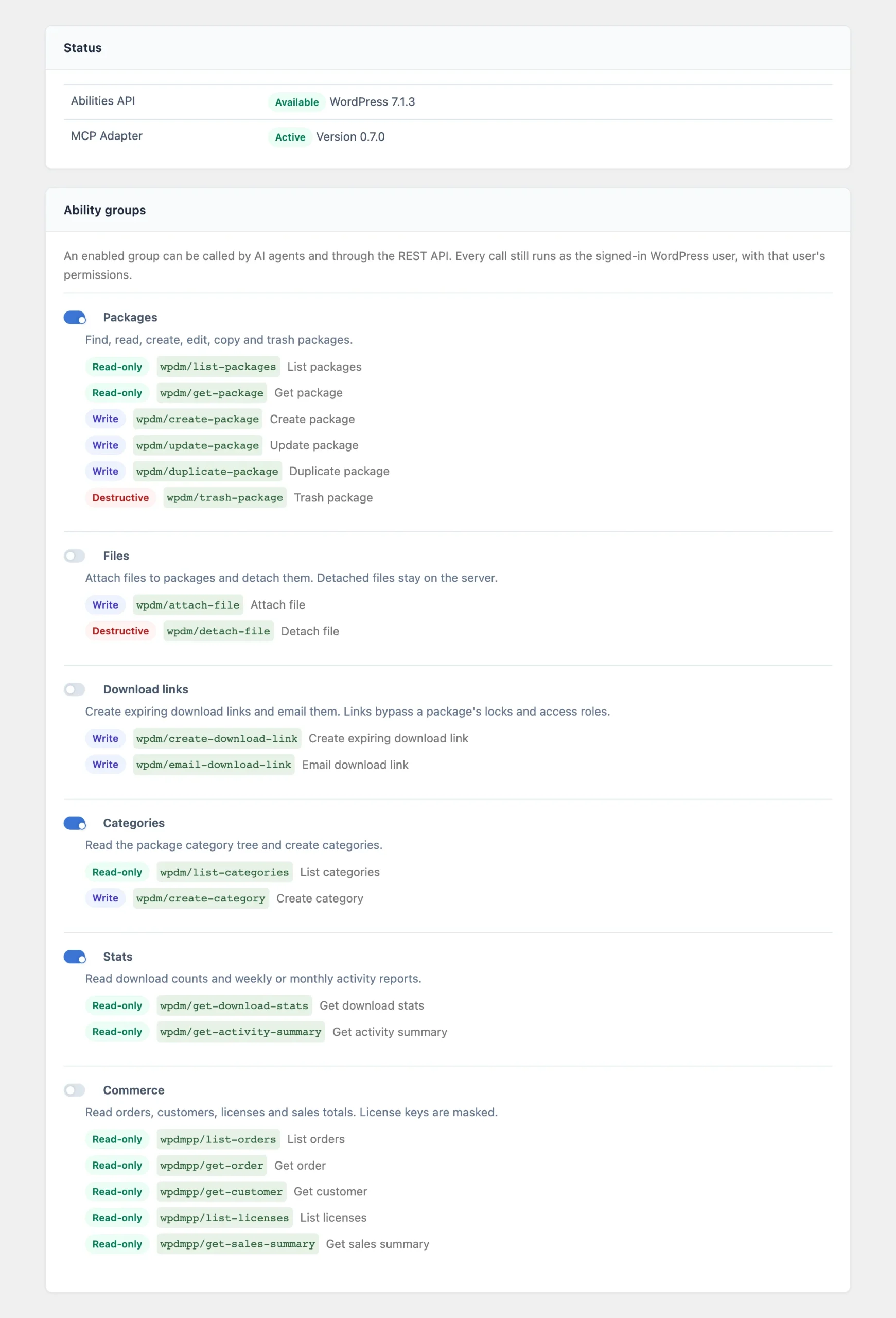
- 14 AI abilities across five groups: Packages, Files, Download links, Categories and Stats
- 5 commerce abilities for orders, customers, licenses and sales in Premium Packages 7.3
- A new AI Abilities settings tab to turn each group on or off, connect an agent and review every call
- Secure by default: everything is off until you enable it, and every call runs with a real WordPress user’s permissions
- Available in Download Manager Pro and the free Download Manager plugin on WordPress.org
What Are WordPress Abilities and MCP?
If these terms are new to you, here is the short version. Three pieces work together:
The WordPress Abilities API
WordPress 6.9 introduced the Abilities API, a standard way for plugins to describe what they can do. Each ability has a name, a plain-language description, a defined set of inputs and outputs, and a permission check. That structure is what lets an AI agent understand an ability and use it correctly.
The Model Context Protocol (MCP)
The Model Context Protocol is an open standard for connecting AI assistants to outside tools and data. Claude Desktop, Claude Code, Cursor, VS Code and a growing list of other clients support it, so one integration works across all of them.
The MCP Adapter plugin
The free MCP Adapter plugin connects the two. It takes the abilities registered on your site and makes them available to MCP clients. When your agent asks Download Manager to do something, the request flows like this:
- You ask your AI client for something in plain language.
- The client calls your site through the MCP Adapter, signed in as a WordPress user.
- WordPress checks the input and that user’s permissions.
- Download Manager runs the ability and sends the result back to the agent.
What Your AI Agent Can Do With Download Manager
The abilities are organized into groups, and each group has its own switch in the settings, so you decide exactly what an agent can reach.
📦 Packages
Search and filter packages, read a package’s full details, create new packages, update them, duplicate them and move them to the trash. New packages are saved as drafts unless you ask the agent to publish them. Duplicates get their own master download key and start with zero downloads.
📎 Files
Attach a file to a package from a public URL, from your Media Library, as a small direct upload, or, for administrators, from a file already in your download folder. Files go through the same file type checks as uploads in wp-admin. Detaching a file removes it from the package but leaves it on your server.
🔗 Download links
Create expiring download links with a usage limit and a lifetime, as a direct download or a download page. The agent can also email a personal link to up to 10 recipients at once, using your site’s email template. Each link stops working after the time or download limit you set.
🗂️ Categories
Read your full category tree, including which roles can download from each category, and create new categories with a parent and access roles.
📊 Stats
Get download counts for any date range up to a year, per day or per package, in your site’s timezone. The agent can also pull your weekly or monthly activity summary: totals compared with the previous period, top and trending packages, and downloads by category. It’s the same data behind Activity Reports.
🛒 Commerce (Premium Packages)
With Premium Packages 7.3 or later, five read-only abilities cover your store: list orders, read an order, look up a customer, list license keys and get a sales summary with revenue per day and your top 10 products. License keys are masked to their last four characters.
Real-World Examples: What to Ask Your AI Agent
You don’t need to know ability names. Describe what you want, and the agent picks the right abilities and chains them together:
- “Find every package in the Manuals category that hasn’t been updated this year, with its download count.”
- “Create a draft package called Spring 2026 Catalog, attach https://example.com/catalog.pdf and make it available to subscribers only.”
- “Send Sam (sam@agency.com) a link to the Brand Kit that expires in 48 hours and works three times.”
- “How many downloads did we get last month, and which packages are trending?”
- “Duplicate the Starter Template package as Starter Template v2 and set its version to 2.0.”
- “What was our revenue this week, and which products sold best?” (Premium Packages)
- “Is the license for this order still active, and which domains is it used on?” (Premium Packages)
Built to Be Safe by Default
Letting an AI agent work on your site should never mean giving up control. The MCP integration is designed around that:
- Off until you turn it on. Every ability group starts private. Enable only the groups you need.
- Your WordPress permissions apply. The agent signs in as a real WordPress user and gets exactly that user’s access, the same as in wp-admin. An author, for example, only sees and edits their own packages.
- A dedicated agent account. Connect agents with their own user and application password. Revoke the password and the agent is cut off instantly.
- Nothing is permanently deleted. Packages can only be moved to the trash, where you can restore them. Detached files stay on your server.
- Secrets stay secret. Package passwords, master keys and server paths are never returned. Customer IP addresses, street addresses, phone numbers and internal order notes are left out of commerce data.
- Every call is logged. The Recent activity log records who called which ability, the result and where the call came from, with passwords removed. Entries are kept for 90 days.
- Built-in limits. By default an agent can make 30 changes per minute, email 20 links per hour, and create links that last up to 30 days. You can adjust every limit.
- Safe file fetching. When an agent attaches a file from a URL, local and private network addresses are refused.
How to Set Up the WPDM MCP Integration
Requirements
- WordPress 6.9 or later
- Download Manager Pro 7.6 or later, or the free Download Manager plugin 3.3.73 or later
- The free MCP Adapter plugin
- An MCP-compatible AI client, such as Claude Desktop, Claude Code, Cursor or VS Code
- Node.js on your computer, for the connection proxy
- Premium Packages 7.3 or later, only for the commerce abilities
Step-by-step setup
- Update Download Manager to version 7.6 or later, and Premium Packages to 7.3 if you sell products.
- Install the MCP Adapter. Go to Plugins → Add New, search for MCP Adapter, then install and activate it.
- Turn on the ability groups you need. Go to Downloads → Settings → AI Abilities. The Status panel confirms that the Abilities API and the MCP Adapter are ready. Switch on the groups you want and click Save Settings.
- Create a user for your agent. Go to Users → Add New and give it the lowest role that covers the job. An Editor can manage packages, files, links and categories. Store data and site-wide activity reports need an Administrator.
- Create an application password. Signed in as that user, open Users → Profile, scroll to Application Passwords, and create one for your AI client.
- Connect your AI client. The Connect an agent panel shows your site’s MCP endpoint and a ready-to-copy configuration. Paste it into your client’s MCP settings and replace the username and password placeholders.
- Try it. Ask your agent: “List my five most recent packages.”
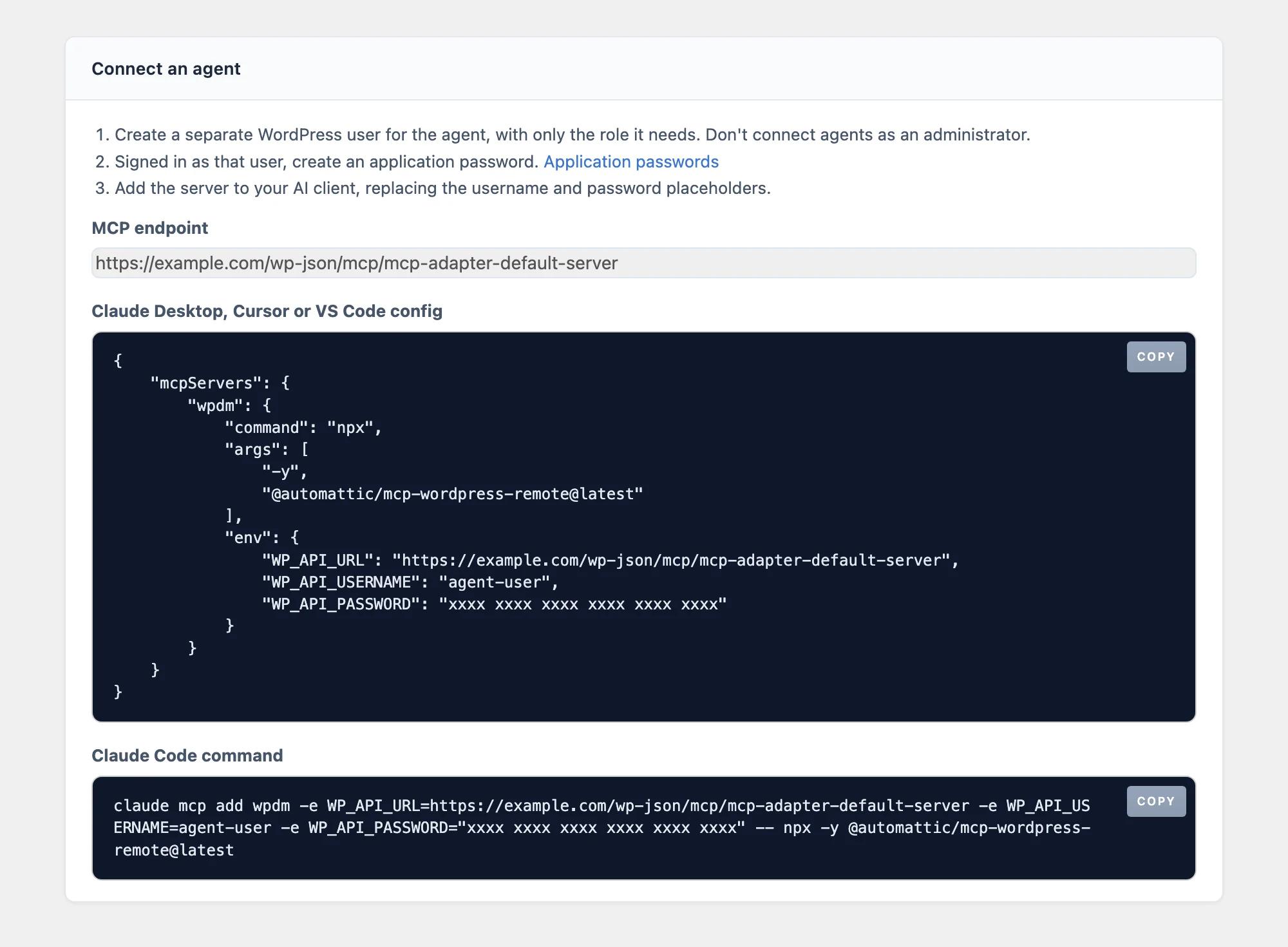
For Claude Desktop, Cursor and VS Code, the configuration looks like this:
{
  "mcpServers": {
    "wpdm": {
      "command": "npx",
      "args": ["-y", "@automattic/mcp-wordpress-remote@latest"],
      "env": {
        "WP_API_URL": "https://your-site.com/wp-json/mcp/mcp-adapter-default-server",
        "WP_API_USERNAME": "agent-user",
        "WP_API_PASSWORD": "xxxx xxxx xxxx xxxx xxxx xxxx"
      }
    }
  }
}
In Claude Code, run the claude mcp add command from the same panel instead.
Frequently Asked Questions
What is MCP, in simple terms?
MCP (Model Context Protocol) is a shared language that lets AI assistants use tools outside the chat. Once your site is connected over MCP, your assistant can carry out tasks in Download Manager instead of only describing how to do them.
Is it safe to let an AI agent manage my downloads?
Yes, with sensible setup. Nothing is exposed until you enable it, the agent only has the permissions of the WordPress user you connect, packages can only be trashed (never deleted permanently), and every call is logged. For extra safety, connect agents with a dedicated user that has the lowest role your tasks need.
Do I need coding skills?
No. Setup is a few clicks in WordPress plus pasting a ready-made configuration into your AI client. After that, you talk to your agent in plain language.
Which AI clients work with it?
Any client that supports MCP, including Claude Desktop, Claude Code, Cursor and VS Code. The settings tab gives you copy-ready setup for these.
Does it work with the free version of Download Manager?
Yes. The free Download Manager plugin on WordPress.org includes the same 14 abilities. The commerce abilities need Premium Packages.
Does it cost anything extra?
No. The abilities are part of Download Manager, and the MCP Adapter plugin is free. Your AI client may have its own subscription.
Can an AI agent delete my files?
No. An agent can move a package to the trash, where you can restore it, and detach a file from a package, which leaves the file on your server. There is no permanent delete.
What data does the AI see?
Only what the enabled abilities return to the user you connect. Passwords, master keys, server paths, full license keys and sensitive customer details are never included. Keep in mind that whatever your agent reads is sent to the AI provider behind your client, so check that provider’s data policy.
Get Started With AI-Powered Download Management
The WPDM Abilities & MCP integration is available now in Download Manager Pro 7.6 and the free Download Manager plugin. Update your plugin, install the MCP Adapter, and connect your first agent from Downloads → Settings → AI Abilities.
Spend less time clicking through screens and more time on the work that matters.