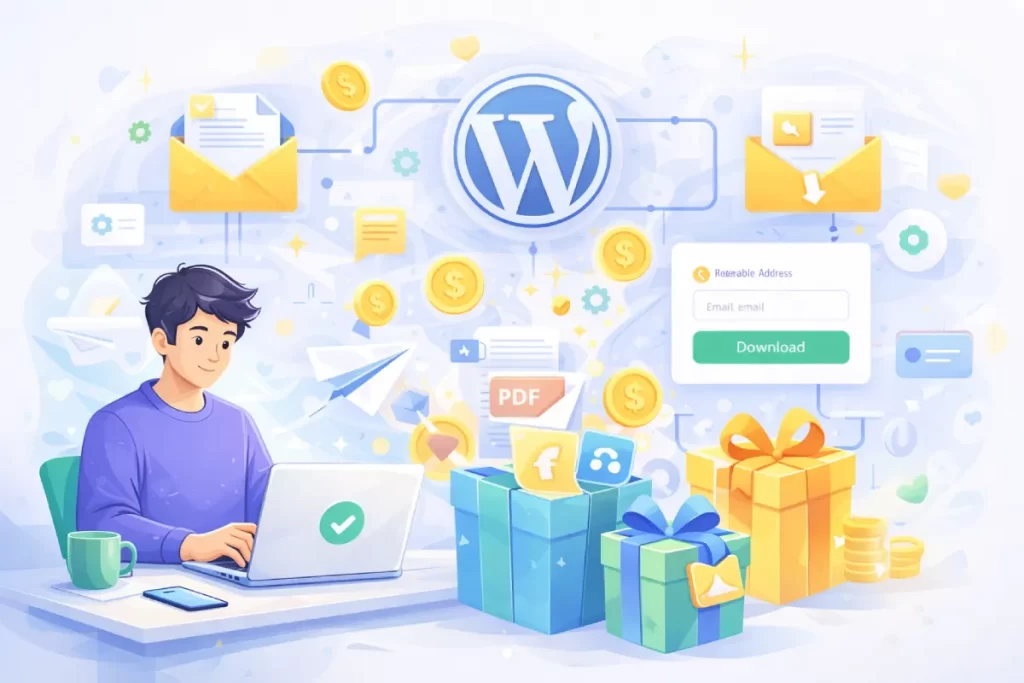
You spend hours creating valuable content, but your email list barely grows. Meanwhile, visitors download your free resources and disappear forever. Sound familiar?
The problem isn’t your content—it’s the gap between your downloads and your email list. Every ungated PDF, template, or guide is a missed opportunity to build a relationship with someone who already trusts you enough to want your work.
In this guide, you’ll build a complete WordPress email marketing system that captures emails, delivers files automatically, and nurtures subscribers into customers—all running on autopilot. The entire setup takes 30-60 minutes, and once it’s running, every download becomes a subscriber without any manual work.
Let’s build your download incentive machine.
Table of Contents
- Why Download Incentives Work in 2026
- The Download Incentive Machine (Funnel Overview)
- Step-by-Step Setup Guide
- Workflow Blueprints
- Optimization Tactics
- Common Mistakes to Avoid
- Quick Start Checklist
- FAQ
Why Download Incentives Work in 2026
People are protective of their inbox. Generic “subscribe for updates” prompts get ignored because they offer nothing concrete in return.
Download incentives flip this dynamic. Instead of asking for an email and promising vague future value, you offer immediate, tangible value in exchange for permission to continue the conversation.
Here’s what makes gated content effective:
- Instant gratification: The subscriber gets something useful within seconds of opting in
- Trust demonstration: Your free resource proves your expertise before you ask for anything
- Intent signal: Someone who downloads a “Social Media Calendar Template” has clearly signaled their interest in social media marketing
- Natural segmentation: Different downloads attract different audience segments, letting you personalize follow-up automatically
The key is matching your incentive to what your audience actually wants—and delivering it instantly. Any friction (slow delivery, confusing access, broken links) destroys trust before you’ve had a chance to build it.
The “Download Incentive Machine” (Funnel Overview)
Before diving into the technical setup, here’s the complete system you’re building:
Visitor arrives → Sees gated download → Enters email
                           ↓
              WPDM validates & stores
                           ↓
        WP Outreach receives subscriber + tag
                           ↓
           Instant delivery email (file link)
                           ↓
         7-day nurture sequence (automated)
                           ↓
    Subscriber converts OR enters re-engagement flow
This system has three components working together:
- WordPress Download Manager (WPDM): Handles the gated download, email capture, and file access
- WP Outreach: Manages email delivery, automation sequences, and subscriber segmentation
- Your content: The valuable incentive that makes people want to exchange their email
Once connected, every new download triggers the complete sequence automatically. You create the incentive once, set up the automation once, and it runs forever.
Step-by-Step Setup Guide
Step 1: Choose a High-Converting Incentive
Your incentive needs to solve a specific problem your target audience has right now. Generic resources get ignored; specific solutions get downloaded.
10 proven incentive types:
- Checklists: “The Complete Website Launch Checklist (47 Items)”
- Templates: “Email Outreach Template Pack (12 Proven Scripts)”
- Swipe files: “50 Blog Post Headlines That Actually Get Clicks”
- Calculators/Spreadsheets: “ROI Calculator for Your Marketing Budget”
- Mini-courses: “5-Day Email Writing Bootcamp (PDF + Audio)”
- Resource lists: “The Ultimate List of Free Stock Photo Sites (Updated 2026)”
- Case studies: “How We Increased Conversions 340% (Full Breakdown)”
- Toolkits: “The Freelancer’s Contract Bundle (5 Templates)”
- Guides: “The Complete Guide to WordPress Security (No Jargon)”
- Exclusive content: “Behind-the-Scenes: Our Exact Content Calendar”
Matching incentive to intent:
- Blog readers → Content upgrades that expand on the post topic
- Service page visitors → Templates or tools related to your service
- Pricing page visitors → ROI calculators or comparison guides
- Homepage visitors → Broad-appeal resources that showcase expertise
Step 2: Create a Gated Download with WPDM
WordPress Download Manager gives you multiple ways to gate your content. Choose based on your conversion goals:
Option A: Email Lock (Recommended for list building)
Visitors enter their email to unlock the download. The email is captured and can be sent directly to WP Outreach.
Option B: Form Integration
Connect a custom form (WPForms, Gravity Forms, etc.) to capture additional information like name, company, or interest area.
Option C: Access Rules
Require user registration or membership level to access. Best for membership sites or courses.
Setting up Email Lock in WPDM:
- Create a new package in Download Manager
- Upload your file(s)
- In the Lock Options section, enable “Email Lock”
- Configure the email capture form appearance
- Set up the integration with WP Outreach (next step)
- Publish and embed using the shortcode
The download page can be customized to match your brand, show a preview of the content, and display trust elements like download counts or testimonials.
→ Full guide: WPDM Email Lock Setup
Step 3: Connect WPDM to WP Outreach
This is where the magic happens. When someone enters their email to download a file, that subscriber flows directly into WP Outreach with tags that identify:
- What they downloaded
- Which page they were on
- When they subscribed
The integration concept:
WPDM captures the email → Sends to WP Outreach via webhook or direct integration → WP Outreach adds the subscriber with appropriate tags → Automation triggers based on those tags.
Tagging strategy for segmentation:
downloaded-[resource-name]— Identifies the specific incentiveinterest-[topic]— Groups by topic areasource-[page]— Tracks where they converted
Example: Someone downloads your “SEO Checklist” from your SEO services page gets tagged: downloaded-seo-checklist, interest-seo, source-services-page.
These tags let you send highly relevant follow-up emails instead of generic broadcasts.
Step 4: Build the Delivery Automation in WP Outreach
Never make someone wait for their download. The delivery email should arrive within seconds of opt-in.
Automation structure:
- Trigger: New subscriber added with tag
downloaded-[resource] - Action 1: Send delivery email immediately (contains direct download link)
- Action 2: Wait 2 minutes, add to nurture sequence
- Fallback: If link expires, email includes link to their download page on your site
Delivery email template:
Subject: Your [Resource Name] is ready

Hi [First Name],

Thanks for downloading [Resource Name].

→ Download now: [DIRECT LINK]

If the link doesn't work, you can always access your download here:
[DOWNLOAD PAGE LINK]

Over the next few days, I'll share some quick tips to help you get the most from this resource.

Talk soon,
[Your Name]
Step 5: Build the 7-Day “Convert” Sequence
The delivery email is just the beginning. Your nurture sequence builds the relationship and guides subscribers toward your paid offering.
7-Day Email Plan:
| Day | Goal | Subject Line Options | CTA |
|---|---|---|---|
| 0 | Deliver resource | “Your [resource] is ready” / “Here’s your download” | Download link |
| 1 | Quick win tip | “Start here (takes 5 min)” / “The first thing to do with [resource]” | Soft: Read more on blog |
| 3 | Deeper value | “Most people miss this” / “The hidden section in your [resource]” | Medium: Related resource |
| 5 | Social proof | “How [Name] used this” / “Real results from [resource]” | Medium: Case study |
| 7 | Soft pitch | “When you’re ready for more” / “The next step” | Strong: Service/product |
Transition to ongoing: After the 7-day sequence, move subscribers to your regular newsletter or a topic-specific drip based on their tags.
Step 6: Add Re-Engagement and List Hygiene
Not everyone will engage. That’s normal. But keeping inactive subscribers hurts your deliverability and skews your metrics.
Re-engagement trigger: No opens or clicks in 60 days
Re-engagement sequence:
- Email 1: “Still interested in [topic]?” + best recent content
- Email 2 (5 days later): “Last chance” + exclusive offer or resource
- Email 3 (5 days later): “Removing you tomorrow” + one-click stay subscribed
Anyone who doesn’t respond gets automatically unsubscribed. This keeps your list healthy and your sender reputation strong.
Step 7: Track and Improve
Weekly metrics to monitor:
- Download conversion rate (visitors → downloads)
- Delivery email open rate (should be 70%+)
- Nurture sequence engagement (opens and clicks per email)
- Unsubscribe rate per email (identify problem emails)
- End-of-sequence conversion rate (subscribers → customers)
Low download conversion? Improve your opt-in copy or incentive positioning. Low delivery opens? Check spam folder placement. Low sequence engagement? Rewrite subject lines or adjust timing.
Workflow Blueprints
A) Ready-to-Copy Delivery + Nurture Sequence
Email 1: Delivery (Immediate)
- Goal: Deliver the resource, set expectations
- Subject A: “Your [resource] is ready to download”
- Subject B: “Here’s your [resource] (download inside)”
- CTA: Direct download button
Email 2: Quick Win (Day 1)
- Goal: Help them get immediate value
- Subject A: “Do this first with your [resource]”
- Subject B: “5-minute quick start”
- CTA: Read the getting started guide (soft)
Email 3: Deeper Value (Day 3)
- Goal: Show expertise, build trust
- Subject A: “The part most people skip”
- Subject B: “Unlock the hidden value in [resource]”
- CTA: Check out related blog post (soft)
Email 4: Story/Social Proof (Day 5)
- Goal: Show real-world results
- Subject A: “How [person] got [result] with this”
- Subject B: “A quick success story”
- CTA: Read the full case study (medium)
Email 5: Bridge to Offer (Day 7)
- Goal: Introduce paid option naturally
- Subject A: “When you’re ready for more help”
- Subject B: “The next step (when you’re ready)”
- CTA: Book a call / View services (strong)
B) Segmentation Playbook
Tag by download:
- Each resource gets its own tag
- Use these to send relevant follow-ups and avoid promoting resources they already have
Tag by link clicks:
- Clicked pricing link →
interested-pricing - Clicked case study →
wants-proof - Clicked service page →
considering-service
Tag by engagement level:
- Opens 3+ emails →
engaged - Clicks 2+ links →
highly-engaged - No opens in 30 days →
cooling-off
C) 5 Offer Bridges (Free → Paid)
- The “Done For You” Bridge: “This template shows you how. Want us to do it for you?”
- The “Deep Dive” Bridge: “This checklist covers the basics. Ready for the advanced version?”
- The “Time Saver” Bridge: “You could implement this yourself, or save 10 hours with our solution.”
- The “Results” Bridge: “[Customer] got [result] following this guide. Here’s how we helped them go further.”
- The “Question” Bridge: “Have questions about implementing this? Let’s talk for 15 minutes (free).”
Before vs. After: Manual vs. Automated
Before (manual process):
- Someone fills out a form
- You get a notification (maybe)
- Hours later, you manually email the file
- You forget to follow up
- The lead goes cold
- Repeat for every single download
After (automated with WPDM + WP Outreach):
- Someone opts in
- File delivered in seconds
- Nurture sequence starts automatically
- Tags applied for future segmentation
- You review weekly metrics, not daily tasks
- Leads convert while you sleep
Mini Examples
Example 1: Blog/Content Site (Content Upgrade)
A marketing blog offers a “Social Media Calendar Template” as a content upgrade on their social media strategy post. Visitors who download get tagged interest-social-media and enter a sequence that shares more social media tips before pitching a paid social media course.
Example 2: Service/Agency (Template + Consultation)
A web design agency offers a “Website Launch Checklist” on their services page. Downloads trigger a sequence that shares case studies and ends with a free consultation offer. The tag source-services-page tells them this lead is already considering hiring an agency.
Objection Handling
“Do I need Mailchimp or another email service?”
No. WP Outreach handles email sending, automation, and subscriber management directly from your WordPress site. You don’t need external email marketing platforms.
“Will this hurt my email deliverability?”
Not if you set it up correctly. Use proper authentication (SPF, DKIM, DMARC), send through a reputable SMTP service, and maintain list hygiene. WP Outreach includes tools to help with all of this.
“Is this too technical for me?”
If you can install a WordPress plugin and follow a tutorial, you can set this up. Both WPDM and WP Outreach use visual interfaces—no coding required.
Optimization Tactics
10 Ways to Increase Opt-In Conversion Rate
- Strategic placement: Put opt-ins where intent is highest (mid-post, after valuable sections)
- Specific headlines: “Get the 47-point checklist” beats “Download our free resource”
- Action button text: “Send me the template” converts better than “Submit”
- Reduce fields: Email only. Every extra field reduces conversions.
- Show a preview: Display 2-3 pages of the resource to build desire
- Two-step opt-in: Button first, then form. Higher commitment = higher completion.
- Trust elements: Download count, testimonials, security badges
- Instant delivery promise: “Get instant access” removes hesitation
- Mobile optimization: Test your forms on phones—that’s where most people are
- Exit intent: Show the offer when someone’s about to leave
Deliverability Checklist
- ✅ Set up SPF, DKIM, and DMARC records for your domain
- ✅ Use a reputable SMTP service (Amazon SES, SendGrid, Mailgun)
- ✅ Warm up new sending domains gradually
- ✅ Avoid spam trigger words (“free,” “act now,” excessive caps)
- ✅ Keep image-to-text ratio balanced
- ✅ Include a clear unsubscribe link in every email
- ✅ Remove bounced and invalid emails promptly
- ✅ Send consistently (sudden volume spikes look suspicious)
- ✅ Monitor your sender reputation regularly
→ Full guide: SMTP Setup and Deliverability
Compliance Basics
Always get clear consent before sending marketing emails. For GDPR compliance, use explicit opt-in language (“I agree to receive emails”) rather than pre-checked boxes. Include your business address and easy unsubscribe in every email. This isn’t legal advice—consult a professional for your specific situation.
12 Common Mistakes to Avoid
- Weak incentive: Generic “newsletter” instead of specific, valuable resource
- Too many form fields: Asking for phone, company, job title on initial opt-in
- No delivery fallback: Relying only on the instant email without a backup download link
- No segmentation: Treating all subscribers the same regardless of what they downloaded
- Too many links per email: Confusing the reader about what action to take
- Bad send timing: Emails arriving at 3 AM in the subscriber’s timezone
- Unclear unsubscribe: Hiding the unsubscribe link (this hurts deliverability)
- No warm-up: Sending to thousands immediately from a new domain
- Never cleaning the list: Keeping inactive subscribers forever
- One-size-fits-all pitch: Same sales message regardless of subscriber interest or engagement
- Slow delivery: Making people wait hours for their download
- No tracking: Flying blind without monitoring key metrics
Quick Start Checklist
- ☐ Choose one high-value incentive that matches your audience’s immediate need
- ☐ Create the resource (checklist, template, guide)
- ☐ Install WordPress Download Manager
- ☐ Create a package with Email Lock enabled
- ☐ Install WP Outreach
- ☐ Connect WPDM to WP Outreach
- ☐ Set up delivery automation (immediate email with download link)
- ☐ Create 5-email nurture sequence
- ☐ Add tags for segmentation
- ☐ Set up re-engagement automation for inactive subscribers
- ☐ Test the complete flow yourself
- ☐ Embed the opt-in on relevant pages
- ☐ Configure SMTP for better deliverability
- ☐ Set up weekly metric review
- ☐ Launch and monitor for first 7 days
Frequently Asked Questions
How do I gate a download in WordPress?
Use WordPress Download Manager’s Email Lock feature. Create a package, upload your file, enable Email Lock in the Lock Options, and embed the shortcode on your page. Visitors must enter their email before accessing the download.
How do I deliver a lead magnet automatically?
Connect your download manager to an email automation tool like WP Outreach. When someone opts in, the automation triggers instantly and sends an email containing the download link—no manual work required.
What’s the best WordPress email marketing plugin in 2026?
For WordPress-native email marketing with automation, WP Outreach offers the tightest integration. It handles subscribers, sequences, segmentation, and sending without requiring external platforms.
How do I avoid emails going to spam?
Set up proper email authentication (SPF, DKIM, DMARC), use a reputable SMTP service, warm up your sending domain gradually, maintain list hygiene, and avoid spam trigger words in your subject lines and content.
Do I need double opt-in?
Double opt-in (confirmation email) isn’t legally required everywhere, but it improves list quality and is recommended for GDPR compliance in the EU. It also proves consent if ever questioned.
Can I use this with WooCommerce?
Yes. WPDM integrates with WooCommerce for paid downloads, and the same email automation principles apply. You can deliver digital products and trigger nurture sequences based on purchases.
How many emails should my nurture sequence have?
Start with 5-7 emails over 7-14 days. This gives enough touchpoints to build trust and make an offer without overwhelming new subscribers. Adjust based on your engagement data.
What if someone downloads multiple resources?
Tags handle this automatically. Each download adds its own tag, and your automation can check for existing tags to avoid sending duplicate sequences or re-delivering resources they already have.
Build Your Email List Building WordPress System Today
Every ungated download on your site is a missed subscriber. Every delayed delivery is a damaged first impression. Every manual follow-up is time you could spend creating more value.
The download incentive machine you’ve learned to build here—WordPress email marketing automation powered by WPDM and WP Outreach—solves all three problems. Downloads become subscribers. Delivery happens instantly. Nurture runs on autopilot.
Start with one incentive, one automation, one sequence. Get it running. Then expand.
Your email list is waiting to grow.
Additional Resources
- Download WordPress Download Manager
- WPDM Email Lock Documentation
- WP Outreach – WordPress Email Marketing
- WP Outreach Automation Builder Guide
- SMTP and Deliverability Setup
Keyword Map
- “WordPress email marketing”: H1, intro paragraph, funnel section H2, conclusion
- “email list building WordPress”: Intro, Step 2 heading area, Quick Start section, conclusion
- “lead magnet delivery”: Step 4 section, FAQ, optimization section
5 Alternative SEO Titles
- The Complete Guide to WordPress Email List Building with Download Gates
- How to Automate Lead Magnet Delivery in WordPress (Step-by-Step)
- WordPress Download Gates: Turn Every Download into a Subscriber
- Build Your Email List on Autopilot: WordPress Download Incentive Guide
- Email List Building for WordPress: The Download Incentive Strategy
5 Featured Image Concepts
- Minimalist illustration of a download arrow flowing into an envelope, with a funnel shape connecting them
- Isometric WordPress dashboard with email subscriber count growing upward
- Clean geometric illustration of gears and automation symbols with email icons
- Abstract illustration of a PDF document transforming into flying envelope icons
- Modern flat illustration of a laptop with download and email workflow arrows
CTA Block Copy Variants
Friendly:
Ready to turn your downloads into subscribers? WordPress Download Manager makes it simple to gate your content and grow your list. Give it a try—it’s free to start.
Direct:
Stop losing subscribers to ungated downloads. Install WPDM, set up email lock, connect your automation. Your list will thank you.
Premium:
Serious about email list building? WordPress Download Manager Pro gives you advanced access controls, detailed analytics, and seamless integration with WP Outreach for complete marketing automation.