
- This topic has 5 replies, 3 voices, and was last updated 8 years, 10 months ago by
Shahjada.

Hello everyone:
Let me prefix this with that I am new to wordpress and the download manager. I have the free version and I am using the sento theme. Here is a picture of the problem i’m having, and I have no idea how to fix it or where to fix it. Any guidance or suggestions are most welcome.

Hi,
Looks like this screenshot does not have any Download Manager related content.
To get started with Download Manager please check this doc https://www.wpdownloadmanager.com/doc/add-new-package/ It shows how to add a download.
Then use this add-on to insert shortcode easily https://www.wpdownloadmanager.com/download/advanced-tinymce-button/
Let us know if need further help with any issue.
Thanks.
Hi! Thanks for the response. those square boxes are the files I uploaded into the download manager and categorized. I’ll review and follow the instructions you provided and see where I end up. One thing I do not understand is where to add the short code. Do I create a new page in my site and place the short code in it?
As I dig further, do I need to create a page for each category, and then use the short code to manually add the download link every time I upload a new file?
Or is there a better way to automatically generate a page that looks like your demo pages with all the categories all nicely laid out? If not, does this mean I would create a page and simply add the short code ids for all the desired downloads I want to make public?
I also need to add I’m using the free version, not the pro version, which has add new file, not “add new package”
Thanks!

Support, you already have a page, where you need to add a download button, so, here what you need to do:
- Go to Admin Menu Downloads Add New
- Add title, description, upload file and publish
- Now, go to Admin Menu Pages
- Click on the page title where you need to add download link
- Click on the blue button:
https://www.evernote.com/shard/s349/sh/bc1af9eb-af75-46f0-9b71-531882de8147/d081a9ec57d6b99255ff260b12ed323f/deep/0/Add-New-Post—WordPress-Themes—WordPress.png - Click on the file title and it will insert the shortcode in the page
- finally, Update the page.

But when you only have a few files to download, the quickest way is using Quick add option with TinyMCE button:
https://www.evernote.com/l/AV1LN_Ekl2pI26fuUAbJz6qk6gPU-rUKP9oB/image.png
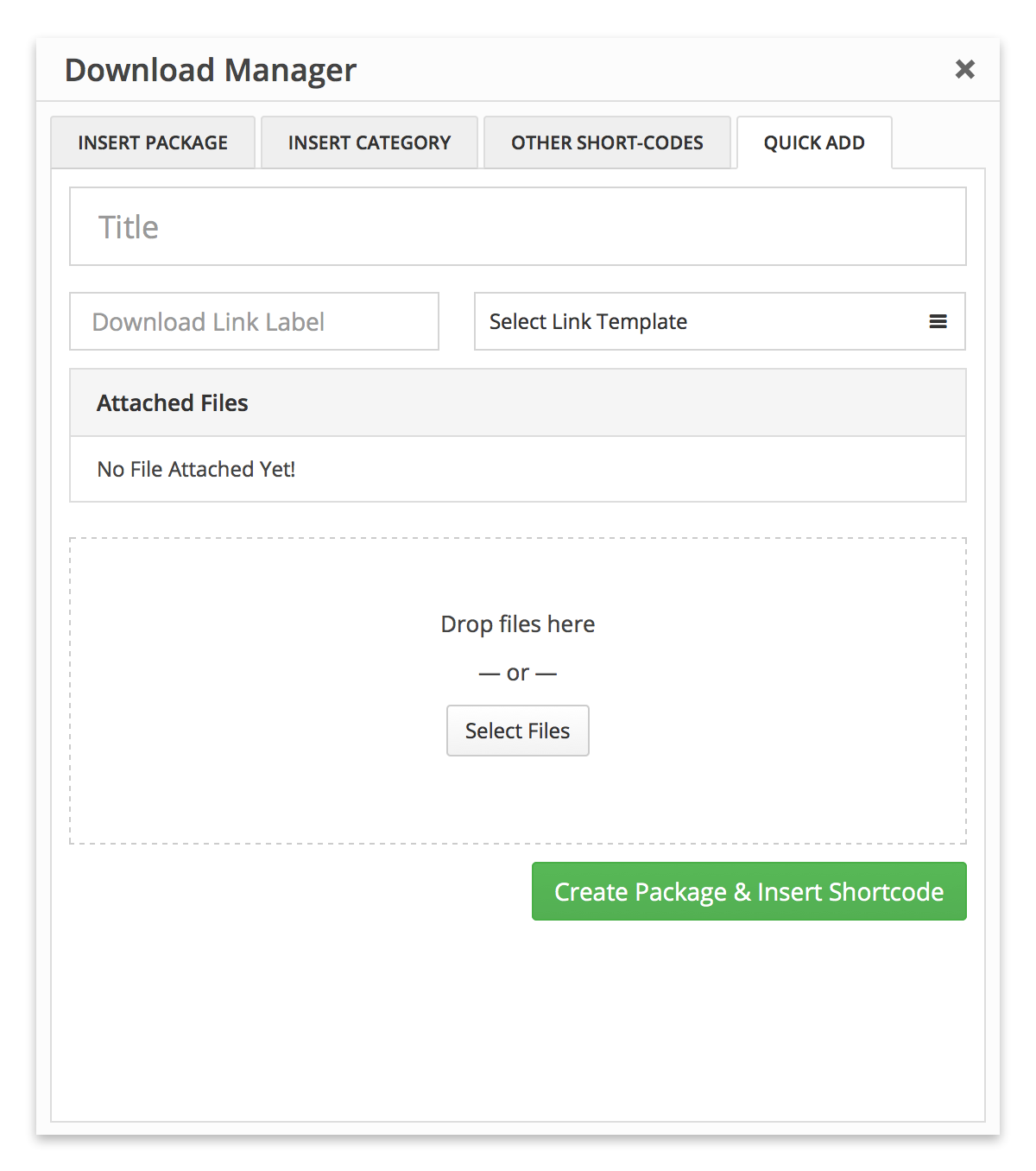
But, when you have lots of files with different categories to download, you need to create all categories and add all files from Admin Menu Downloads
After you are done with adding all categories and files, now you can use category shortcode or file shortcode in page content to share your files or you can link categories or files directly with your menus from menu manager here Admin Menu Appearance Menus.
BTW, the process in Add New File and Add New Package are almost same.
AH ha! that’s how you do it! Thanks! Sorry. that just isn’t intuitive and I had difficulty locating it. thank you!!!!
The topic "Help request with display pages/categories" is closed to new replies.